Task Portal
The Task Portal is the execution workspace for business users and developer testers. Use it to start deployed processes, find visible work, claim shared tasks, complete forms, save task drafts, manage task variables, and work with task documents.
Access the portal
The standard packaged URL is http://localhost:3002. A local Vite development session commonly uses http://localhost:5174. Sign in with a user that has portal access; local development environments initially provide the admin account described in First Login.
Main areas
| Area | Purpose |
|---|---|
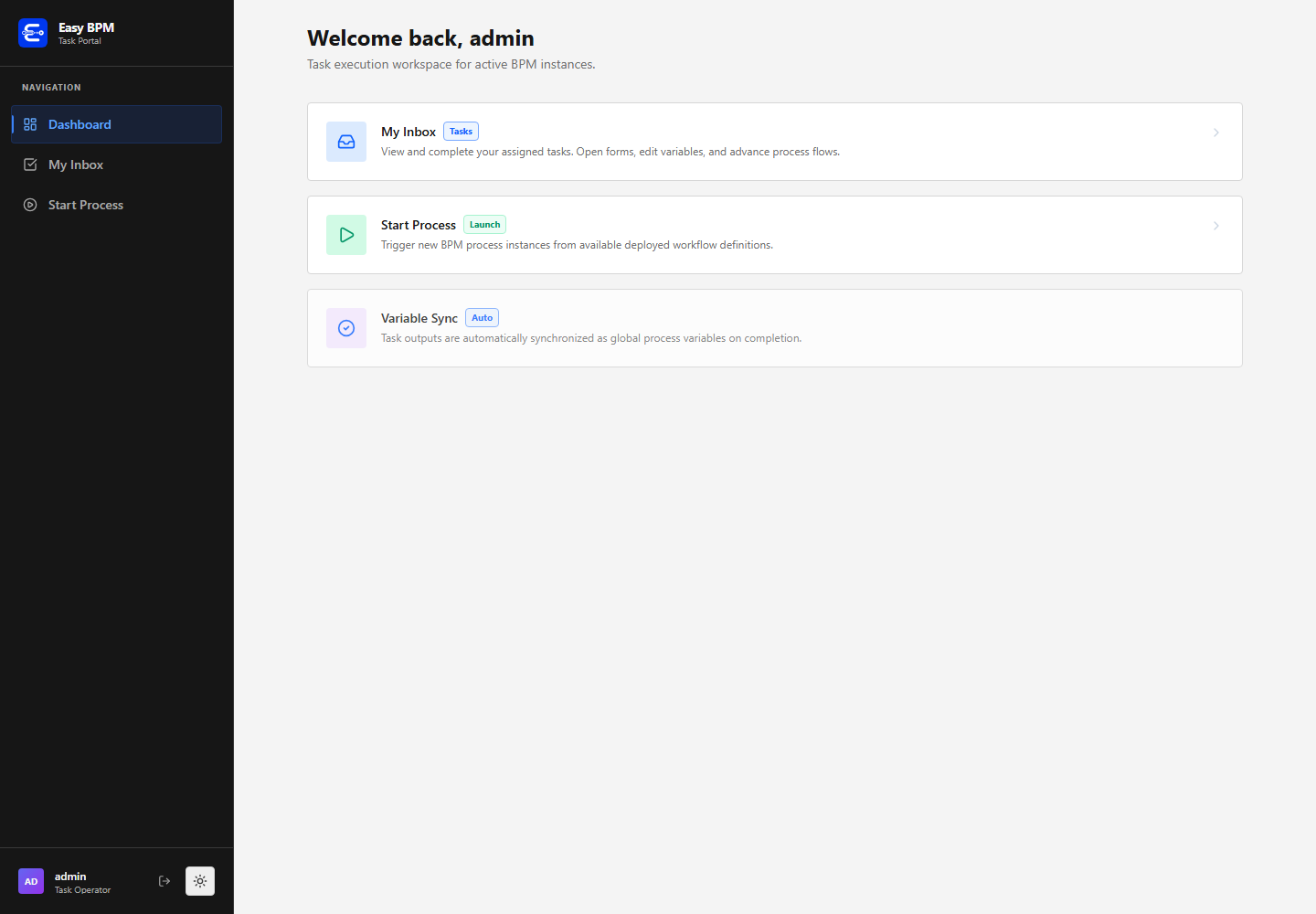
Dashboard | Opens the main task and process actions and explains automatic variable synchronization. |
My Inbox | Lists assigned, available, and completed tasks visible to the signed-in user. |
Start Process | Searches deployed process definitions and starts their latest available version. |
| User menu | Shows the current user and provides sign-out and theme controls. |
Users need ACCESS_PROCESS_PORTAL to access process and task endpoints through the portal. Task visibility is then restricted by direct assignee, candidate user, and candidate group rules.
Start a process
Open Start Process to see deployed workflow definitions. Search by process name, key, or description, move between result pages, and select Start on the required process.
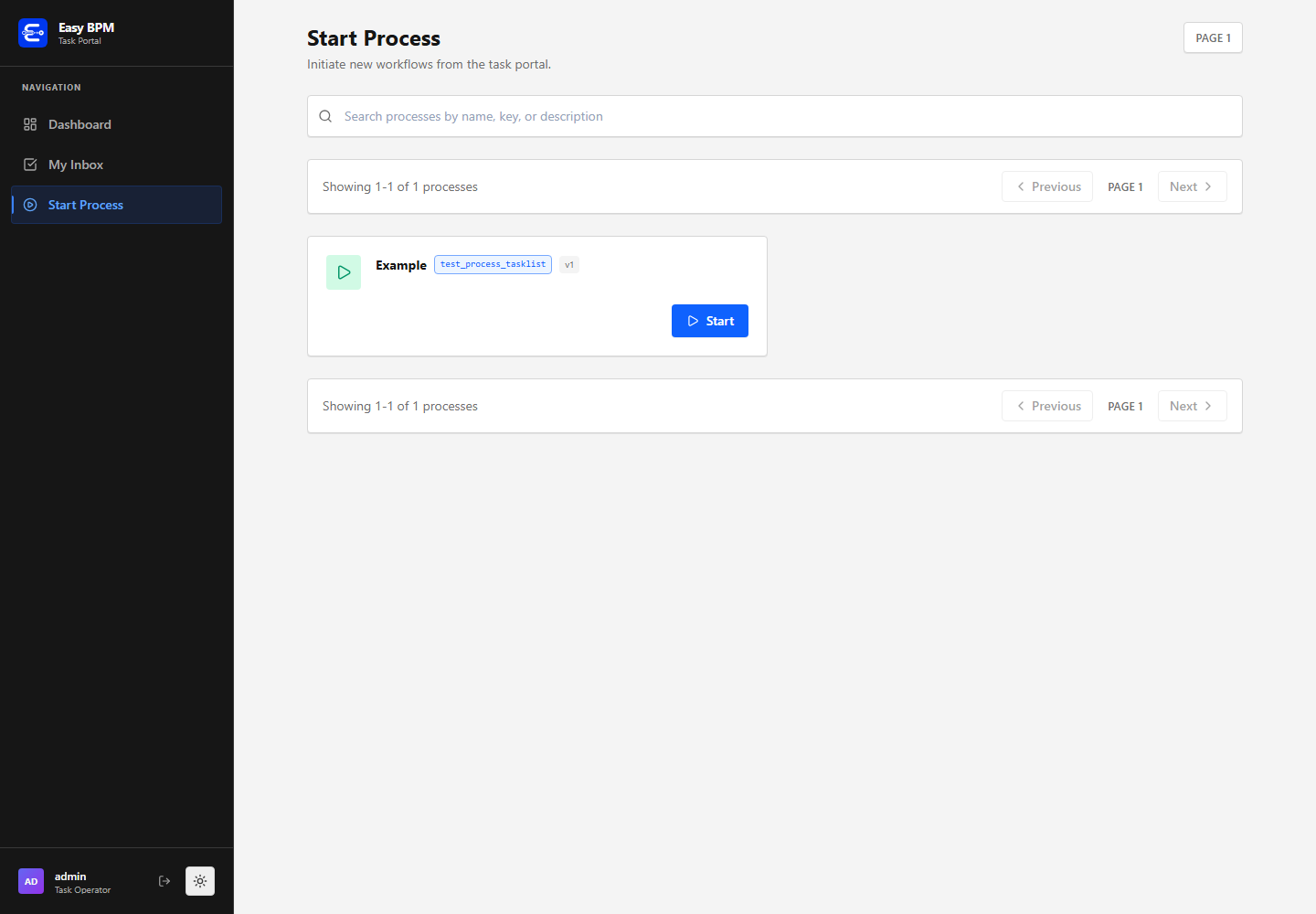
Starting a definition creates a new process instance and returns to the inbox. A Human Task appears when process execution reaches that node and the signed-in user is allowed to see it.
Walk through the deployed example
The current local environment includes the deployed Example process with key test_process_tasklist. The following flow was executed against the running portal:
- Open Start Process and start
Example. - Open My Inbox, then select All.
- Open the unassigned
New user taskcreated by the process. - The portal claims the task and assigns it to the current user,
admin. - Add task output variables or complete an attached form.
- Select Save Draft to persist progress without advancing the process, or Complete Task to submit outputs and continue execution.
Inbox categories
| Category | Contents |
|---|---|
Assigned | Pending tasks owned by the current user. |
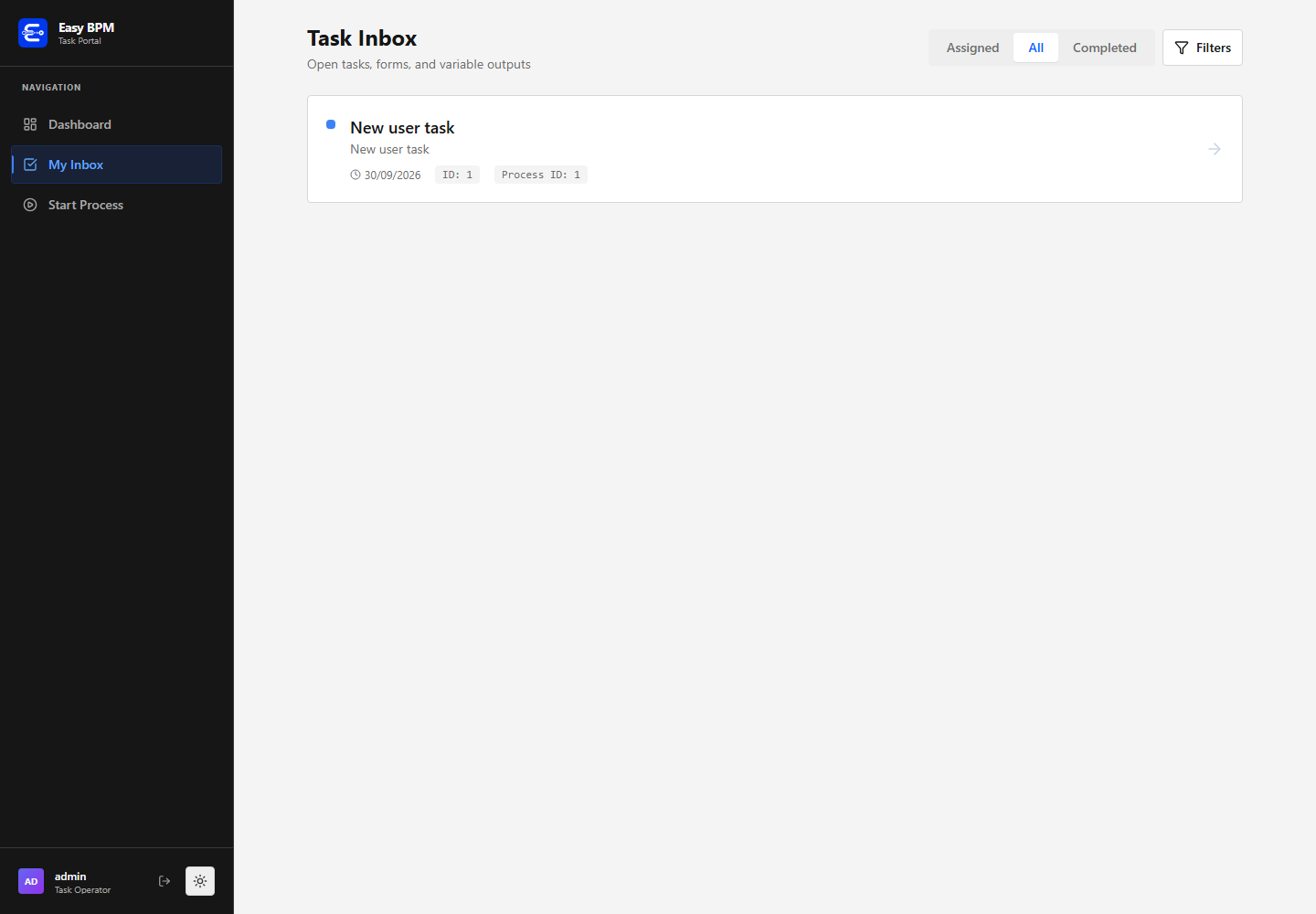
All | All pending tasks visible to the current user, including claimable unassigned work. |
Completed | Visible tasks that have already been completed. |
Each task card shows its title, description, creation date, task ID, and process instance ID.
Claim and unclaim tasks
Opening a visible unassigned task claims it automatically. The backend assigns the task to the signed-in user and the portal confirms the change before enabling task editing.
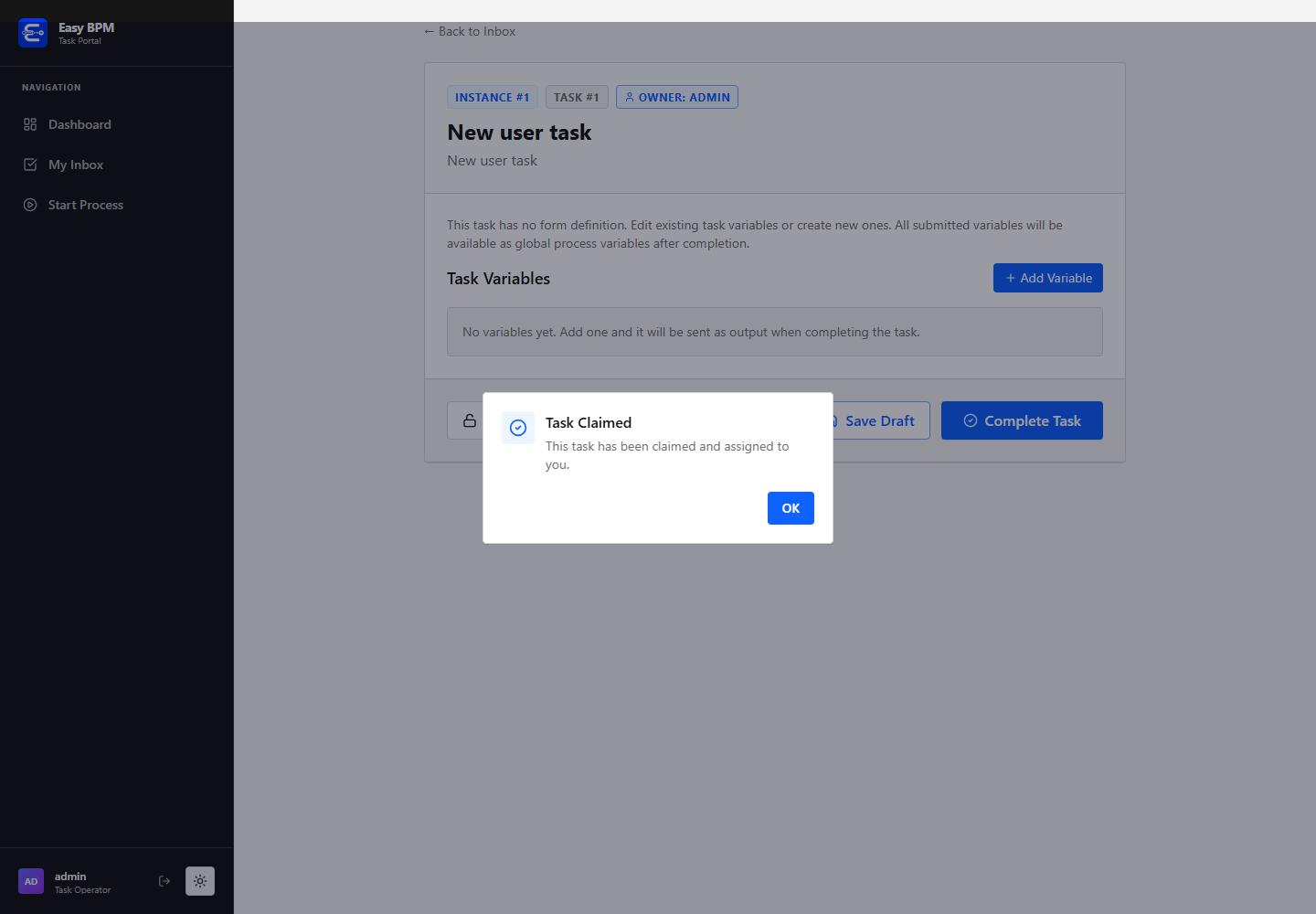
After claiming, the task header identifies the process instance, task ID, and owner. Only the owner can edit values, save a draft, or complete the task.
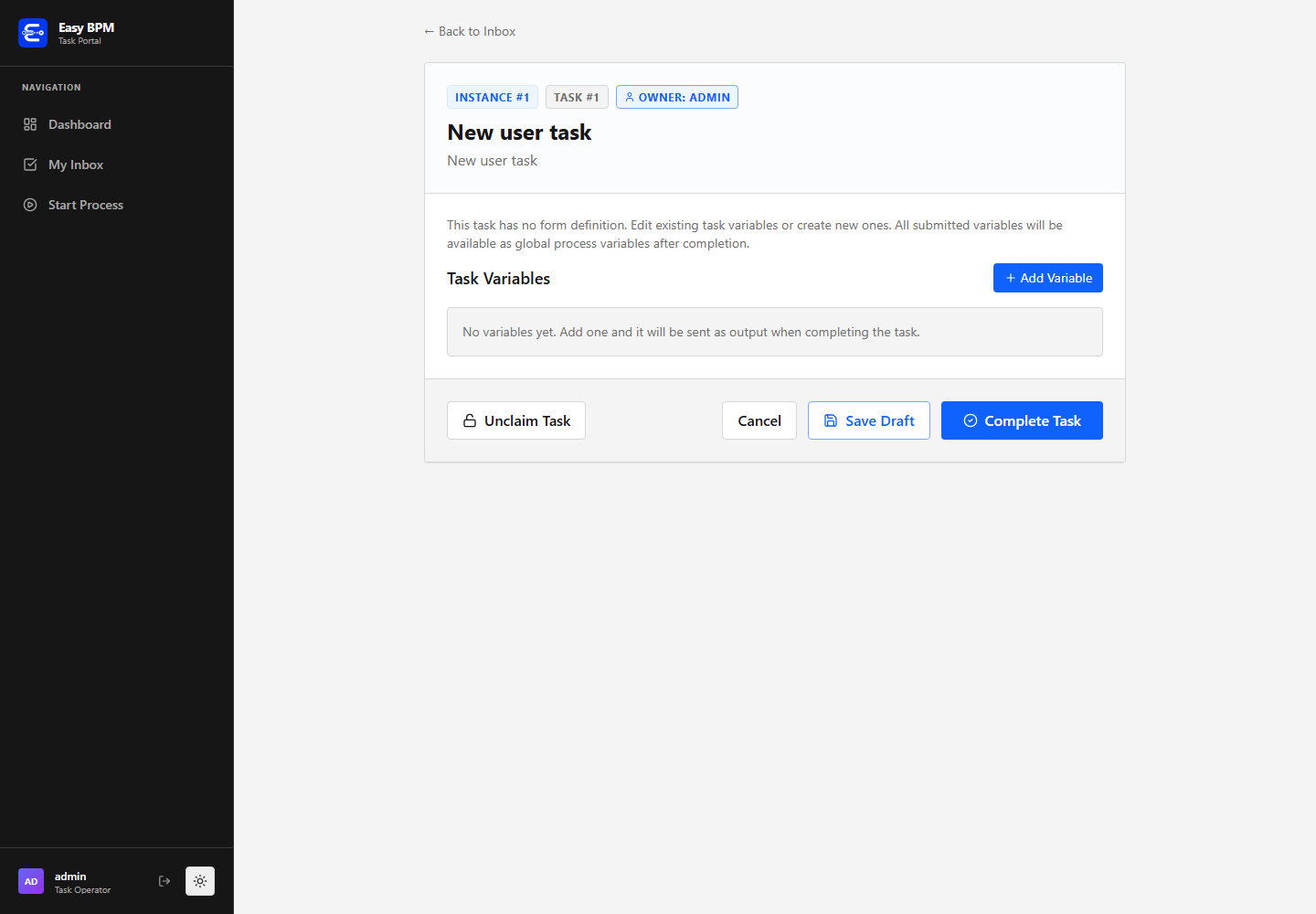
Select Unclaim Task to remove the current owner and return shared work to the available pool. Unclaim only when another eligible user should be allowed to take the task.
Work with forms and variables
When a Human Task references a deployed form, the detail page renders that form and initializes its controls from task variables. Required-field validation runs before completion, read-only fields cannot be edited, and submitted form values become task outputs.
When no form is attached, the Task Portal displays the variable editor instead. Select Add Variable, provide a unique variable name, choose its type, and enter a value.
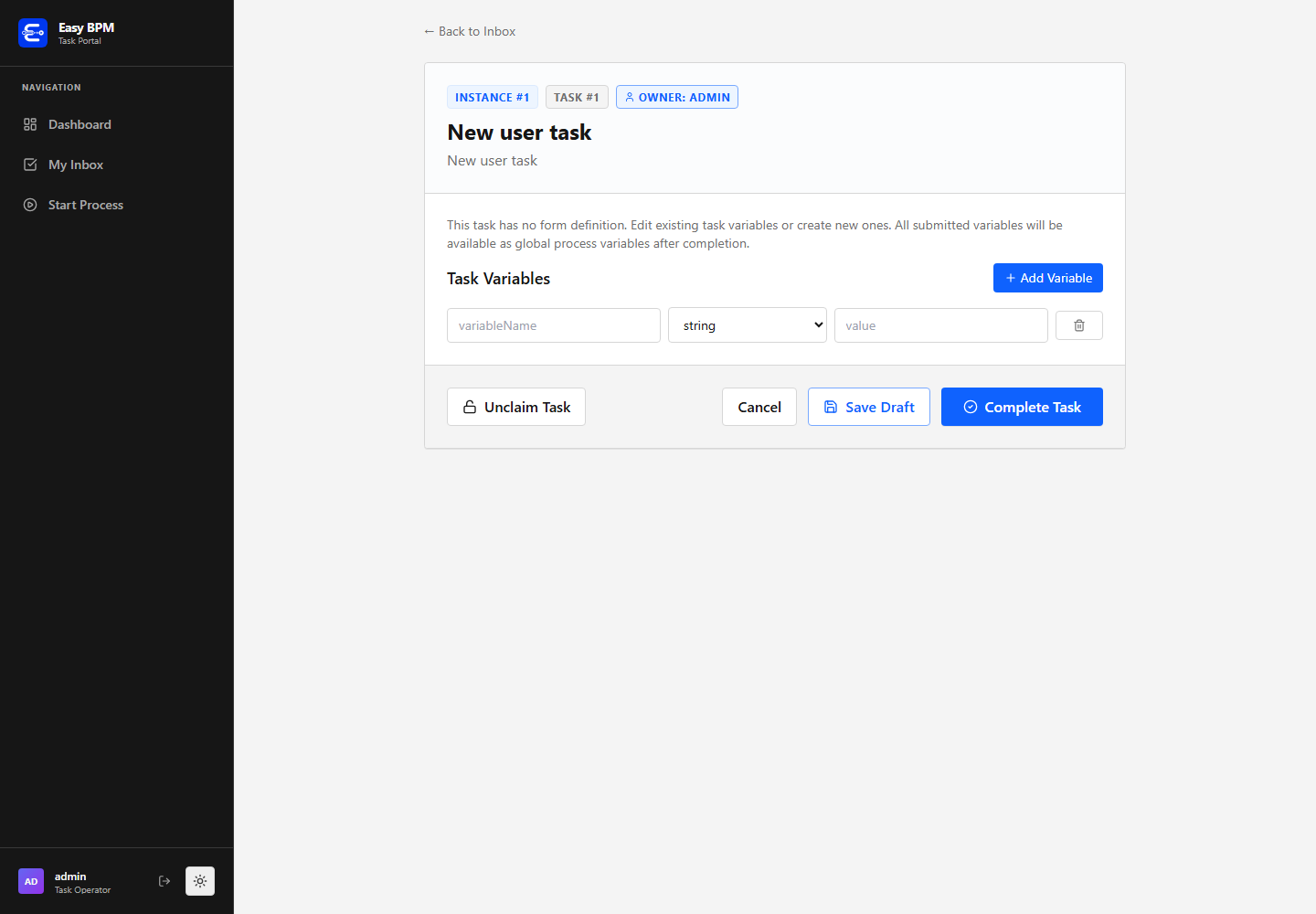
Supported manual variable types are:
| Type | Input behavior |
|---|---|
string | Saves the entered value as text. |
number | Converts the entered value to a number. |
boolean | Selects true or false. |
json | Parses the entered text as JSON before submission. |
Every variable row must have a key, keys must be unique, and JSON values must be valid JSON.
Save or complete work
| Action | Effect |
|---|---|
Save Draft | Persists the current task variables without completing the task. The process remains waiting at the Human Task. |
Complete Task | Validates the form or variable rows, submits outputs, marks the task complete, and continues process execution. |
Cancel | Returns to the inbox without completing the task. |
Unclaim Task | Clears the current owner and returns the task to the available pool. |
On completion, submitted task outputs are synchronized into the process variables according to the Human Task output mappings.
Filter the inbox
Open Filters to build structured task queries. Multiple filters are combined, so a task must satisfy all applied conditions.
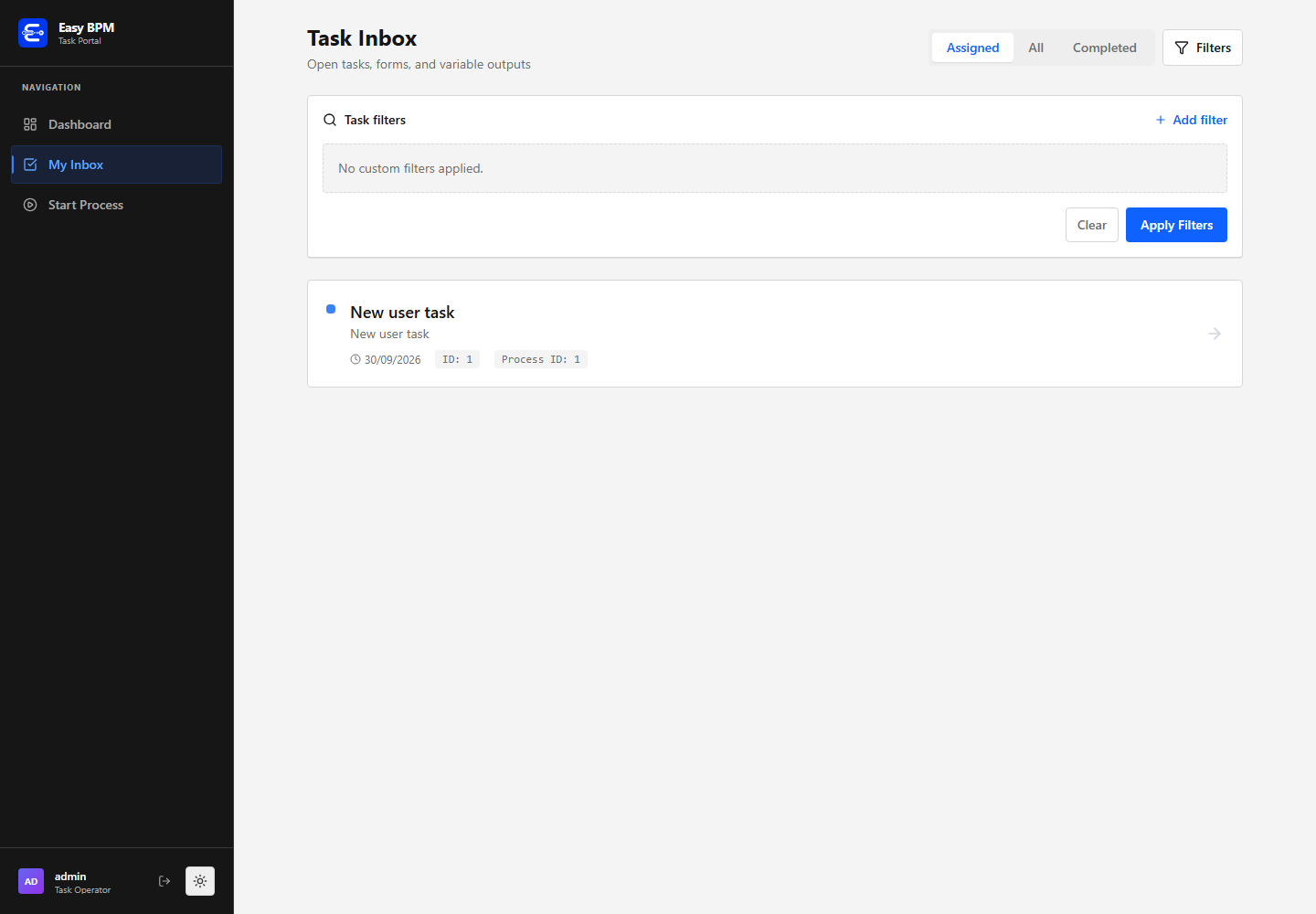
The portal can filter by state, assignee, candidate user, candidate group, process definition, process instance, task name, created date, task variable, and process variable. Available operators depend on the selected field and include equality, inequality, list membership, text matching, and numeric or date comparisons.
Variable filters require both the variable name and comparison value. Select Apply Filters to run the query or Clear to remove the current filter definition.
Documents in task forms
Forms can expose File Upload, File Download, and PDF Viewer fields. Uploaded files are associated with the task, process instance, and form field. The field value stores the document UUID, which the portal uses for later download or inline PDF preview.
See Form Modeler for document field configuration and Forms for form deployment.
API operations used by the portal
| Portal feature | API |
|---|---|
| Login | POST /auth/login |
| Process list | GET /processes |
| Start process | POST /processes/{processId}/start |
| Task list and filters | POST /tasks/search |
| Task details | GET /tasks/{id} |
| Claim task | POST /tasks/{id}/claim |
| Unclaim task | POST /tasks/{id}/unclaim |
| Save draft | POST /tasks/{id}/draft |
| Complete task | POST /tasks/{id}/complete |
| Document upload | POST /api/documents |
See the Tasks API for request and response examples.