Form Modeler
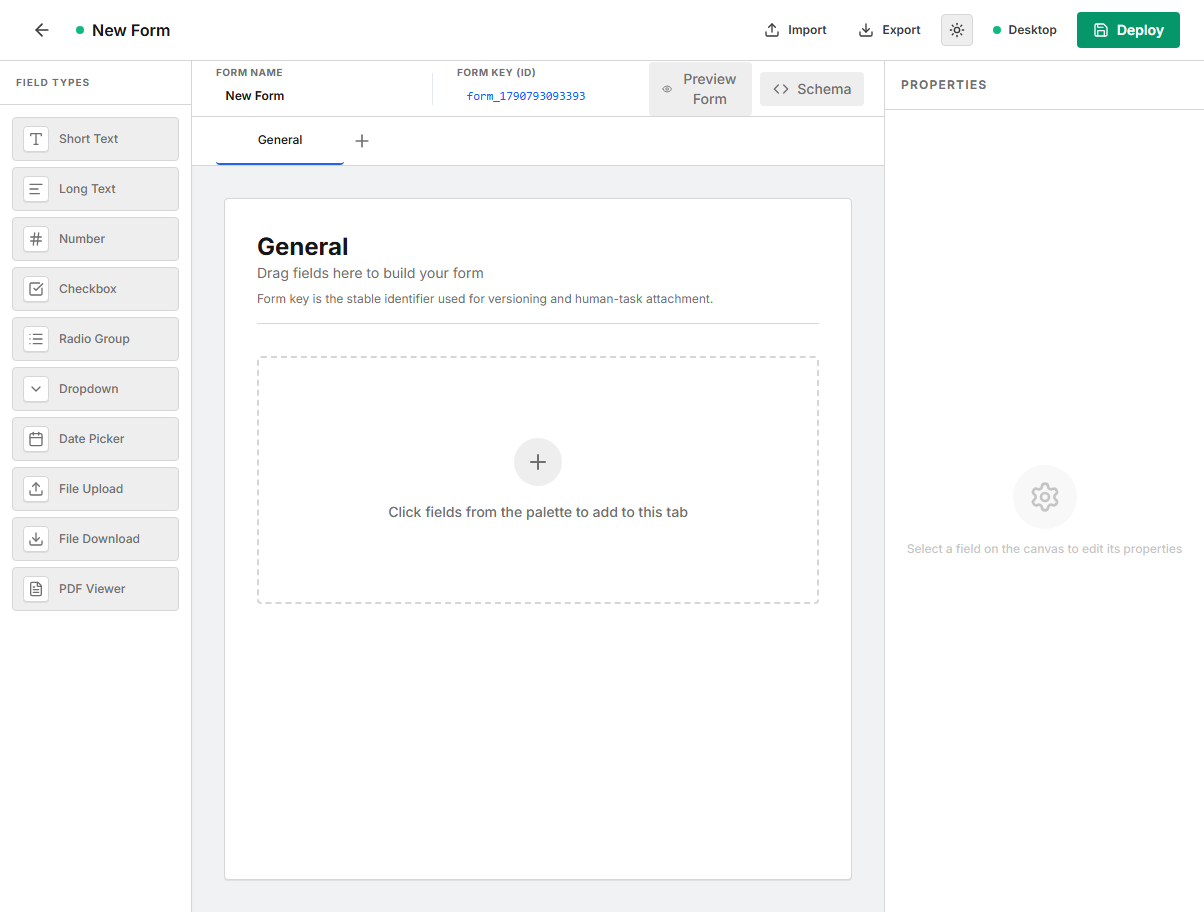
The Form Modeler creates reusable task forms without requiring handwritten JSON. A form is identified by a stable form key, contains one or more authoring tabs, and is deployed as a JSON-schema-based definition that a Human Task can render in the Task Portal.
Recommended workflow
- Set a descriptive Form Name and a stable Form Key (ID).
- Create tabs to organize related fields while designing the form.
- Add fields from the Field Types palette.
- Select each field and configure its title, variable name, validation, and type-specific options.
- Use Preview Form to inspect the user-facing layout.
- Open Schema to review or edit the generated JSON definition.
- Export a local copy when the definition should be reviewed or versioned outside Easy BPM.
- Deploy the form, then reference its form key from a Human Task.
Form identity and layout
| Setting | Purpose |
|---|---|
Form Name | User-friendly name displayed in the form definition and exported schema title. It is required for deployment. |
Form Key (ID) | Stable identifier used for versioning and Human Task attachment. It must start with a letter and contain only letters, numbers, hyphens, or underscores. |
| Tabs | Organize fields into editable and previewable sections. Use the plus button to add a tab, edit its name inline, and use the tab close button to remove it. At least one tab is always retained. |
| Field order | Drag existing fields vertically inside a tab to reorder them. |
Tabs organize the authoring and preview experience. When the form is deployed, fields from all tabs are flattened into the JSON schema properties object, so variable names must be unique across the entire form.
Common field settings
Every field exposes these settings in the Properties panel.
| Setting | Purpose |
|---|---|
Field Title | Label displayed to the task user. |
Variable Name (ID) | Key used in submitted form data and task mappings. It cannot be empty or duplicated anywhere in the form. |
Field Type | Changes the control type without recreating the field. Review type-specific settings after changing it. |
Read Only | Displays the value without allowing the user to change it. Enabling read-only automatically clears Required Field. |
Required Field | Adds the variable name to the schema required list. It is unavailable for read-only fields. |
Delete Field | Removes the selected field from the active tab. |
Text fields
Short Text
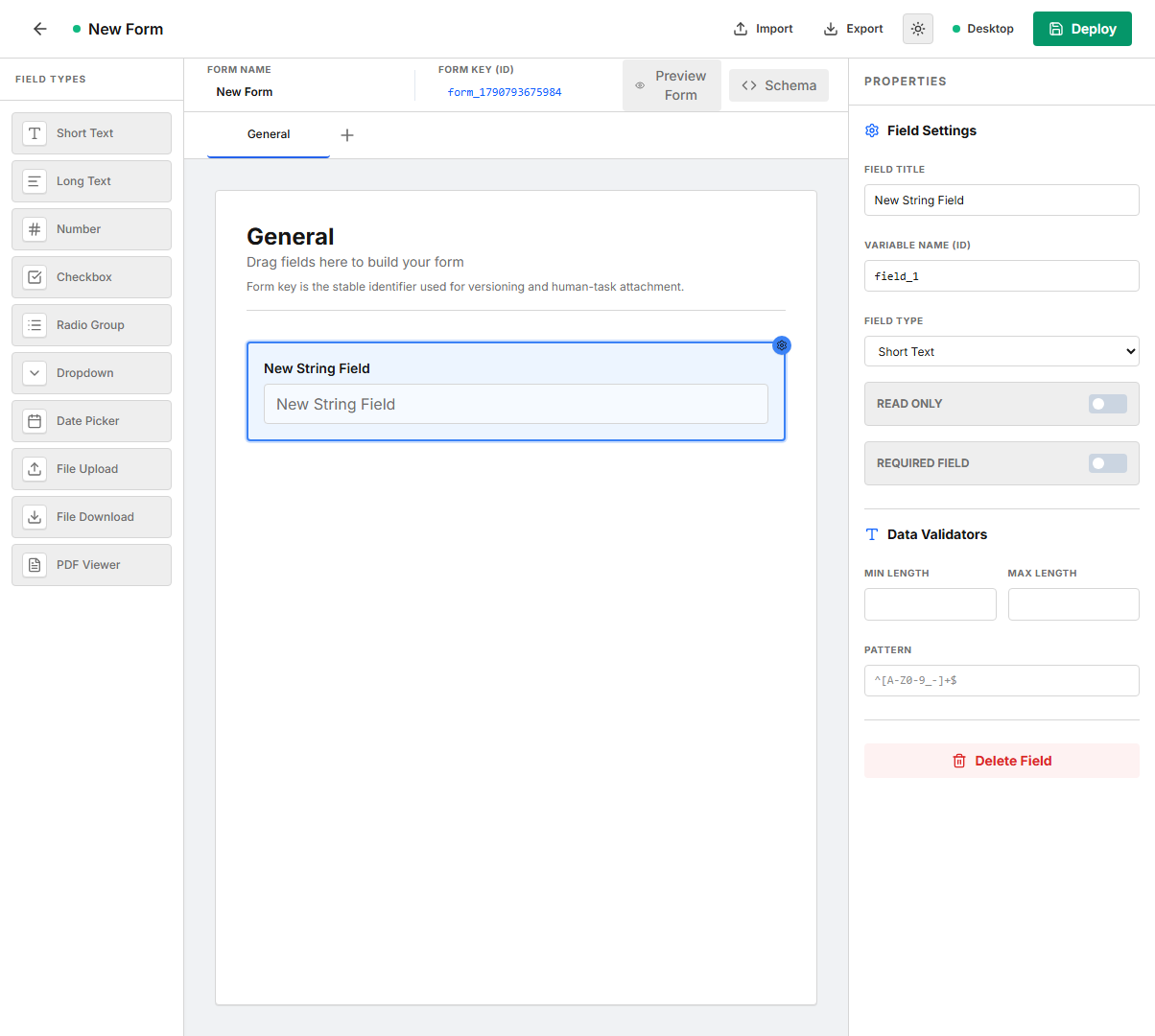
Use Short Text for names, identifiers, summaries, and other single-line values.
| Configuration | Effect |
|---|---|
Min Length | Minimum number of characters accepted. |
Max Length | Maximum number of characters accepted. |
Pattern | Regular expression that the submitted value must match, for example ^[A-Z0-9_-]+$. |
The deployed property uses JSON type string and includes minLength, maxLength, or pattern when configured.
Long Text
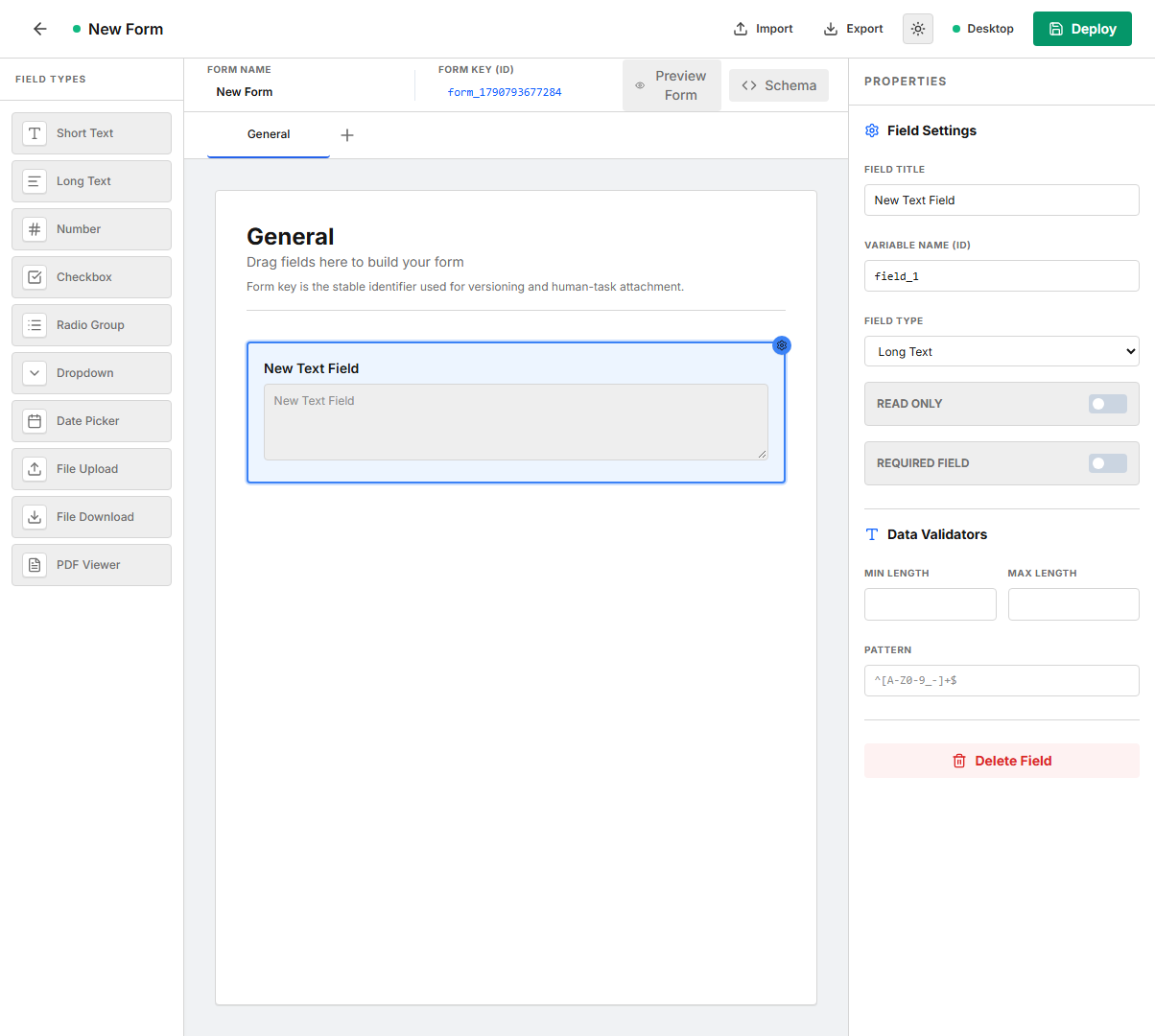
Use Long Text for comments, explanations, descriptions, and other multi-line content. It supports the same minimum length, maximum length, and pattern validators as Short Text. The deployed property uses type string with format textarea.
Numeric and boolean fields
Number
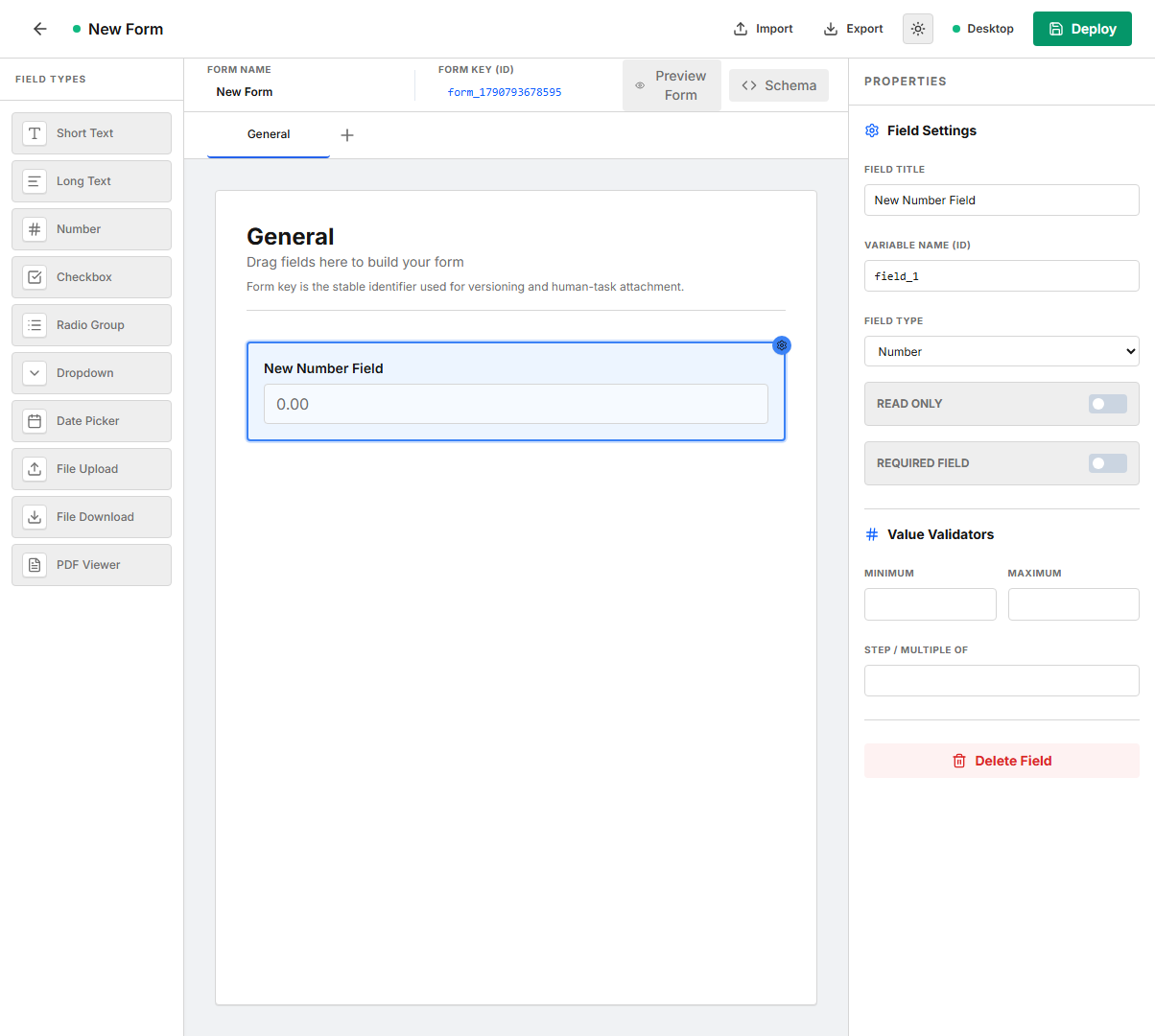
Use Number for amounts, quantities, percentages, scores, and measurements.
| Configuration | Effect |
|---|---|
Minimum | Lowest accepted value. |
Maximum | Highest accepted value. |
Step / Multiple Of | Accepted numeric increment, such as 1, 0.5, or 0.01. |
The deployed property uses JSON type number with minimum, maximum, and multipleOf when supplied.
Checkbox
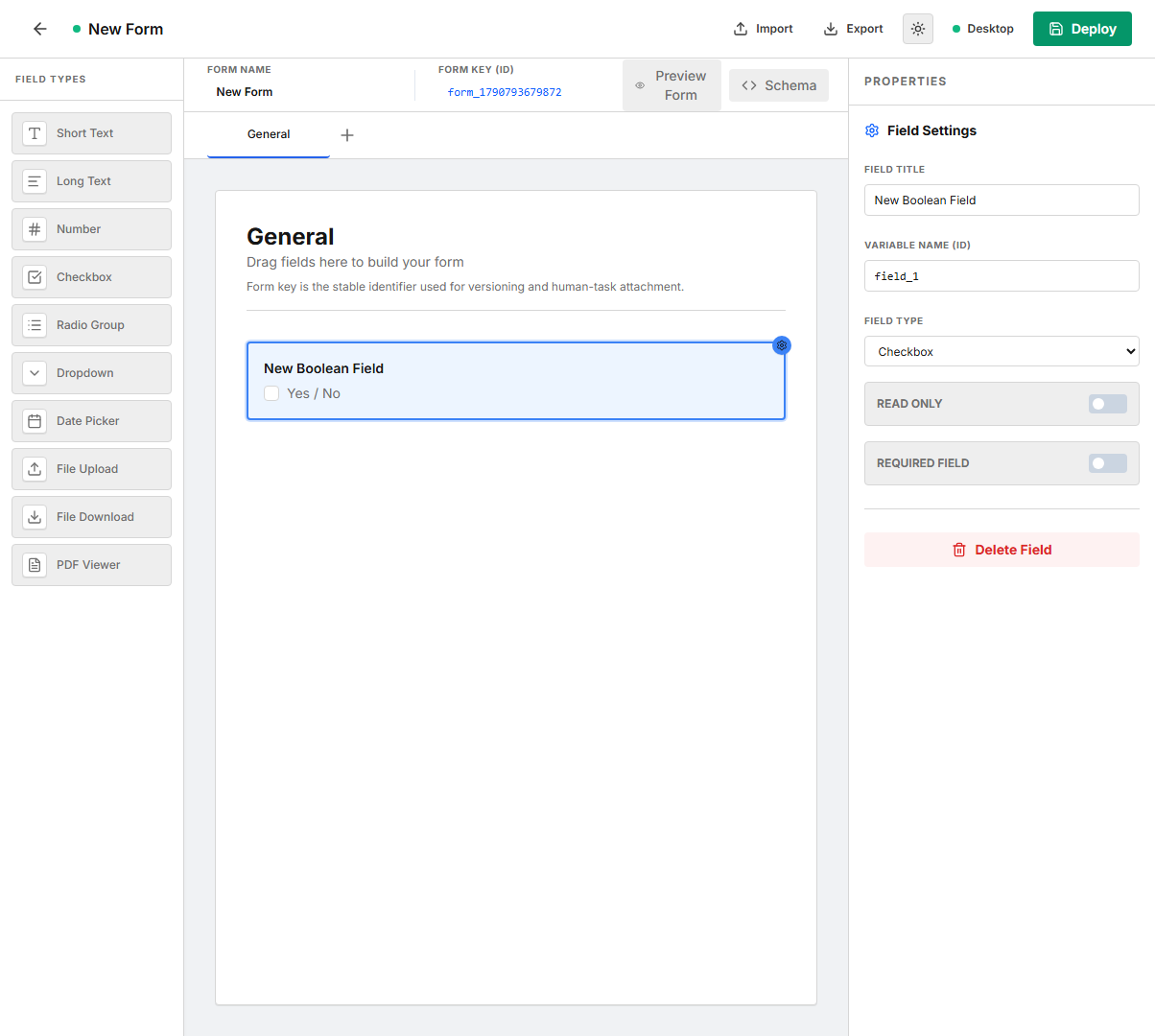
Use Checkbox for a true/false decision such as confirmation, acknowledgement, or approval. It uses the common title, variable, read-only, and required settings and deploys as JSON type boolean.
Choice fields
Radio Group
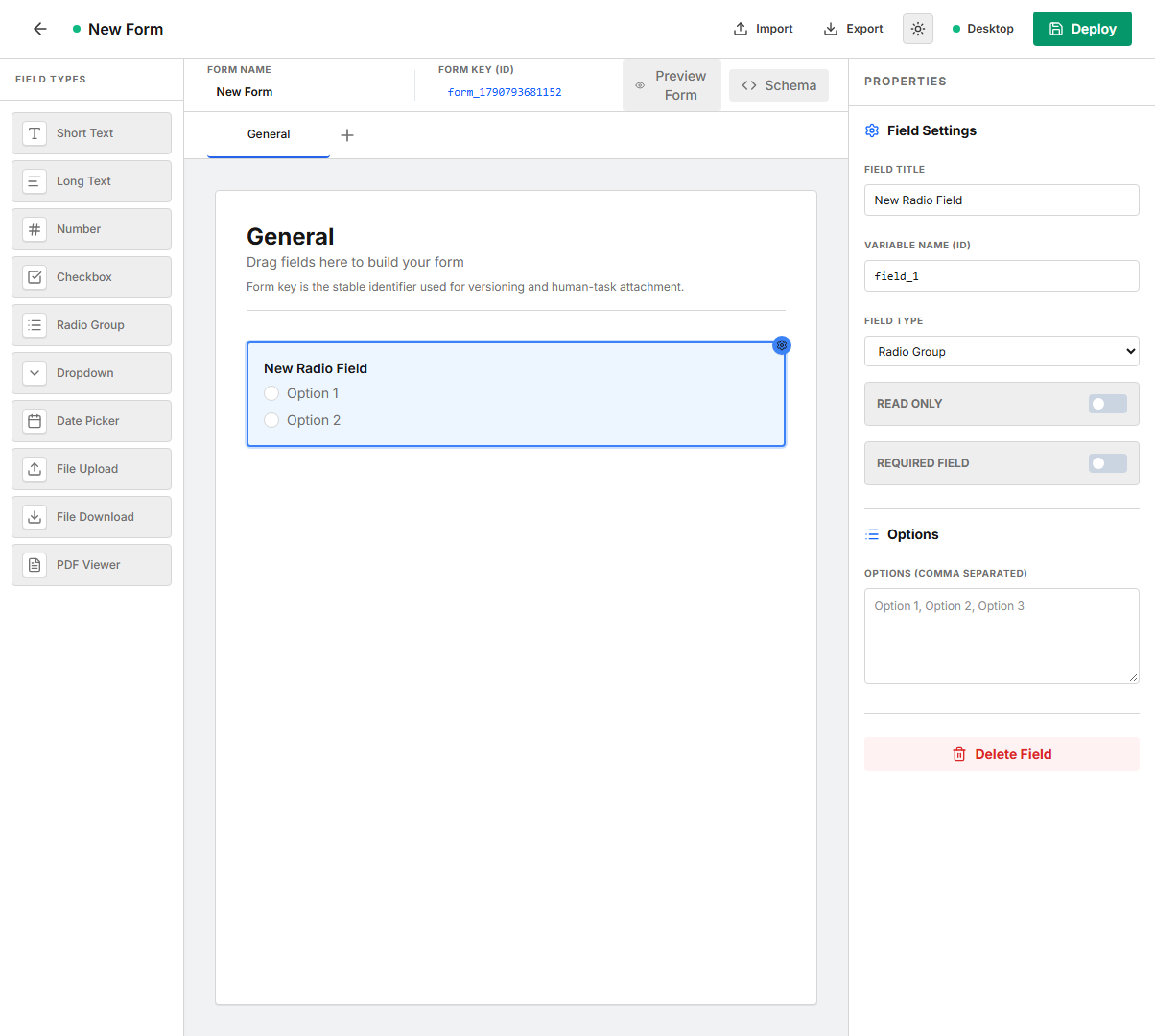
Use Radio Group when the options should remain visible and the user must choose one value. Enter options as a comma-separated list. Empty entries are removed automatically. The modeler preview displays radio buttons, and the deployed schema stores the configured values in enum.
Dropdown
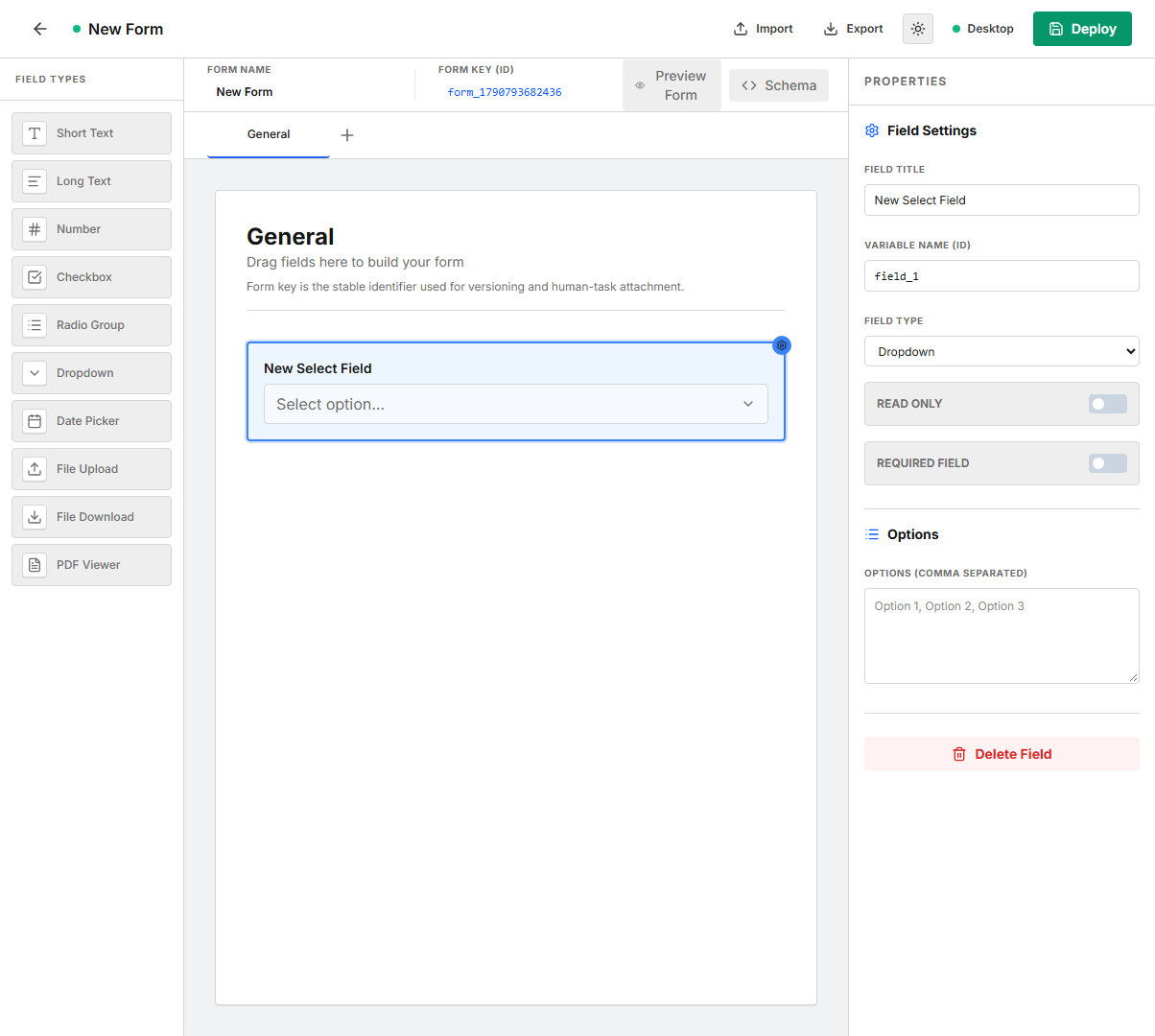
Use Dropdown for a compact single-choice field. Configure Options (comma separated) in the same way as Radio Group. The deployed property uses type string with the values in enum.
Keep option values stable after deployment when process logic or reports depend on the submitted text.
The deployed JSON Schema represents both controls as a string with an enum. Export the complete Form Modeler definition when the visual distinction between radio buttons and a dropdown must be preserved for later editing.
Date Picker
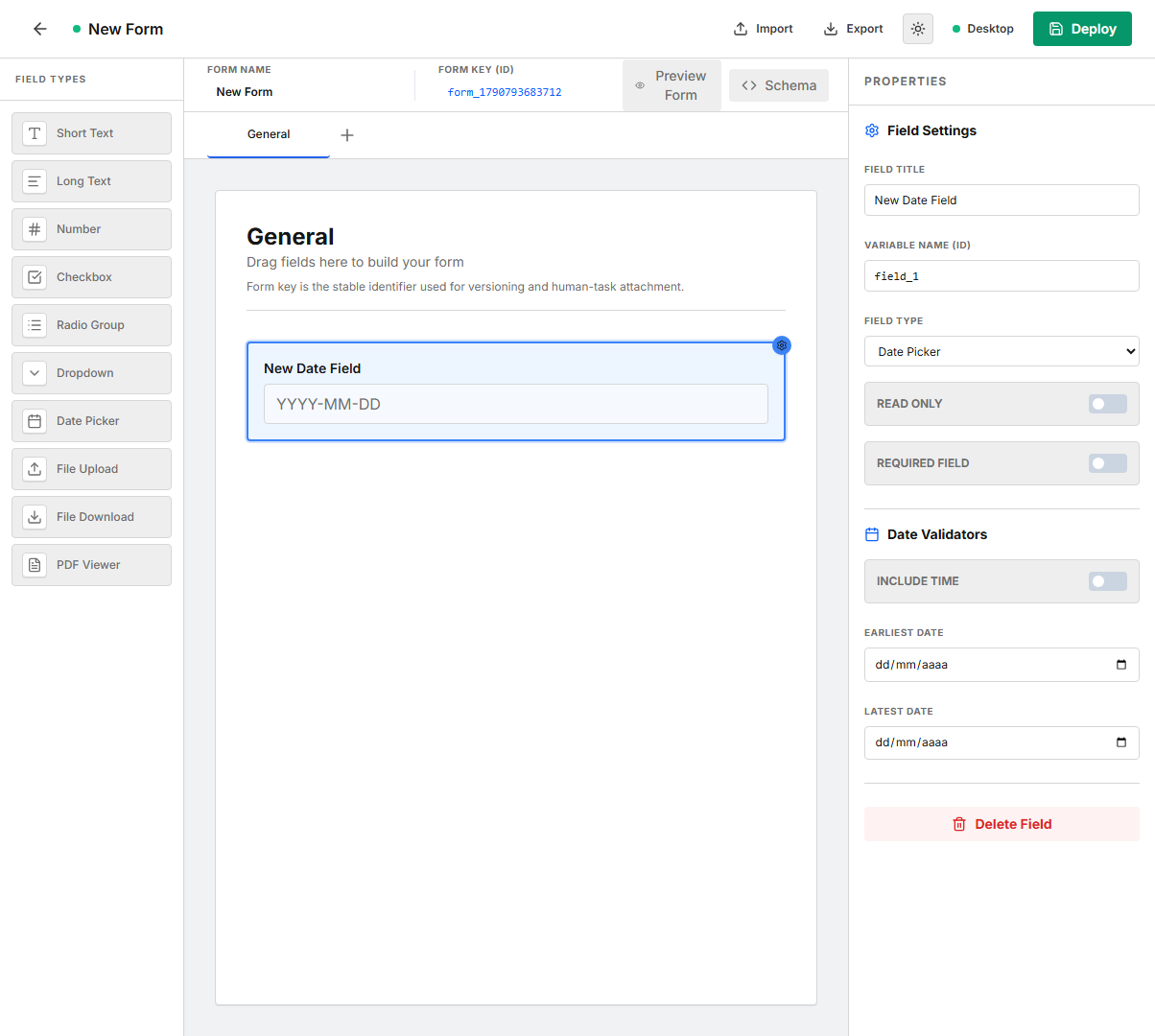
Use Date Picker for due dates, appointment dates, effective dates, and date/time values.
| Configuration | Effect |
|---|---|
Include Time | Switches the control between date-only and local date/time input. |
Earliest Date / Earliest Date/Time | Minimum selectable value. |
Latest Date / Latest Date/Time | Maximum selectable value. |
Date-only fields use format date. When time is enabled, the field uses format date-time and sets includeTime. Bounds are exported as both minDate/maxDate and formatMinimum/formatMaximum for runtime compatibility.
Document fields
Document controls store or consume a document UUID in the field variable. The Task Portal uses that UUID to upload, download, or preview the corresponding document.
File Upload
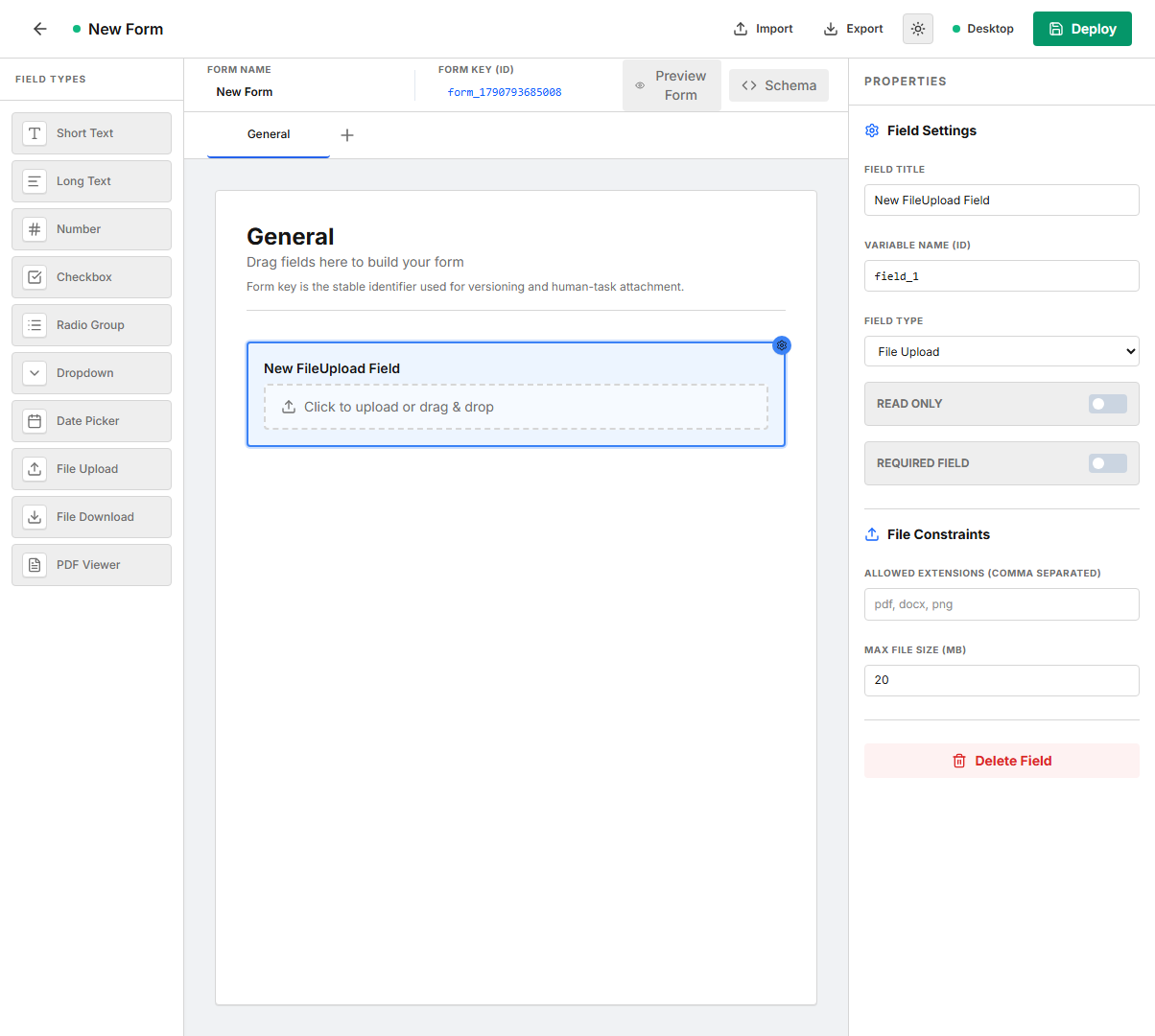
Use File Upload when the task user must attach a document.
| Configuration | Effect |
|---|---|
Allowed Extensions | Comma-separated extensions such as pdf, docx, png. A leading period is removed automatically. Leave empty to avoid an extension allowlist. |
Max File Size (MB) | Maximum accepted file size. The editor accepts values from 1 to 100; the default is 20. |
The deployed property uses format fileUpload and includes allowedExtensions and maxSizeMb when configured. The Task Portal validates both constraints before uploading.
File Download
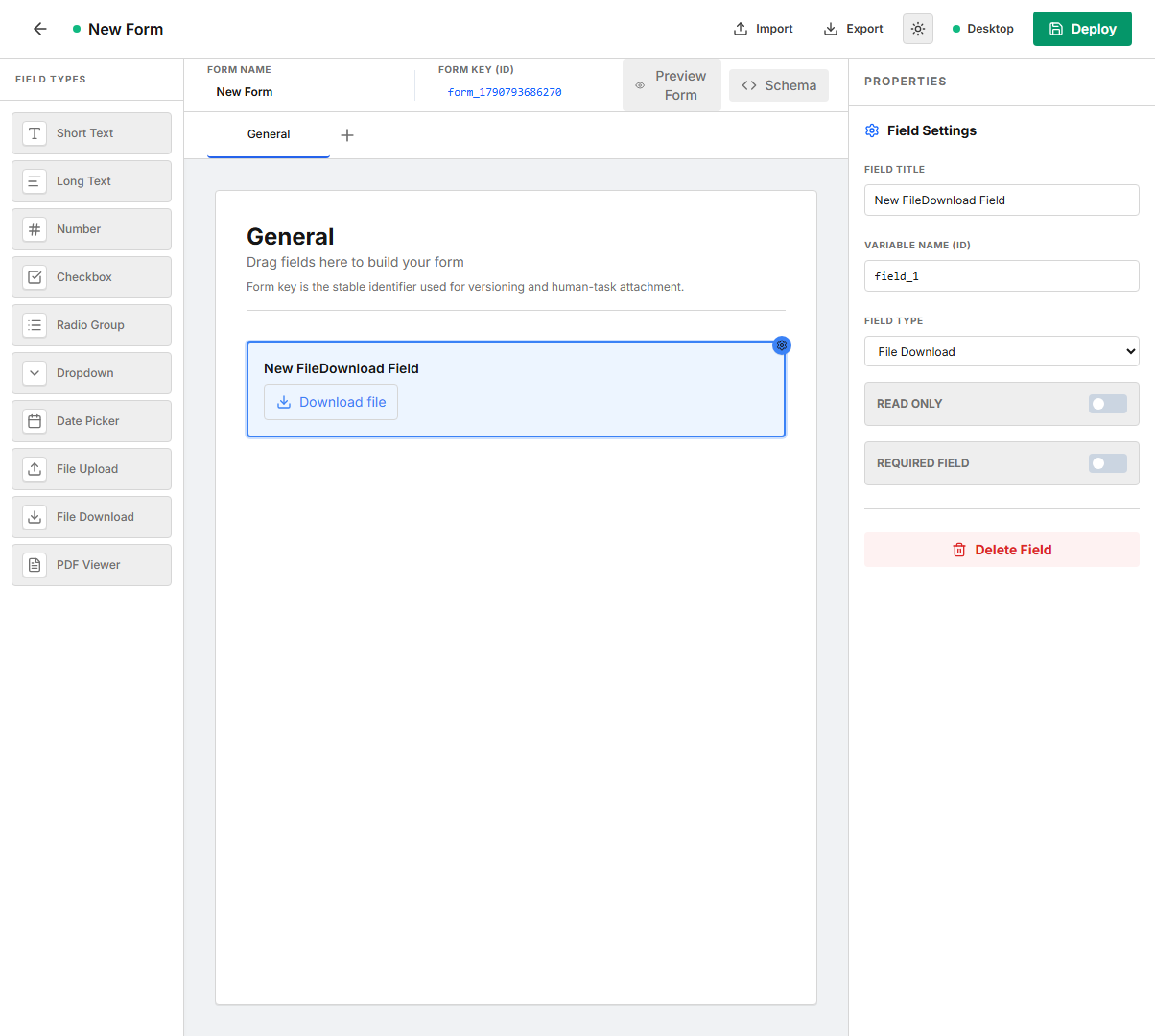
Use File Download to present a download action for an existing document UUID supplied through the field variable. Configure the title and variable name, and normally make the field read-only because it displays process-provided data. The deployed property uses format fileDownload.
PDF Viewer
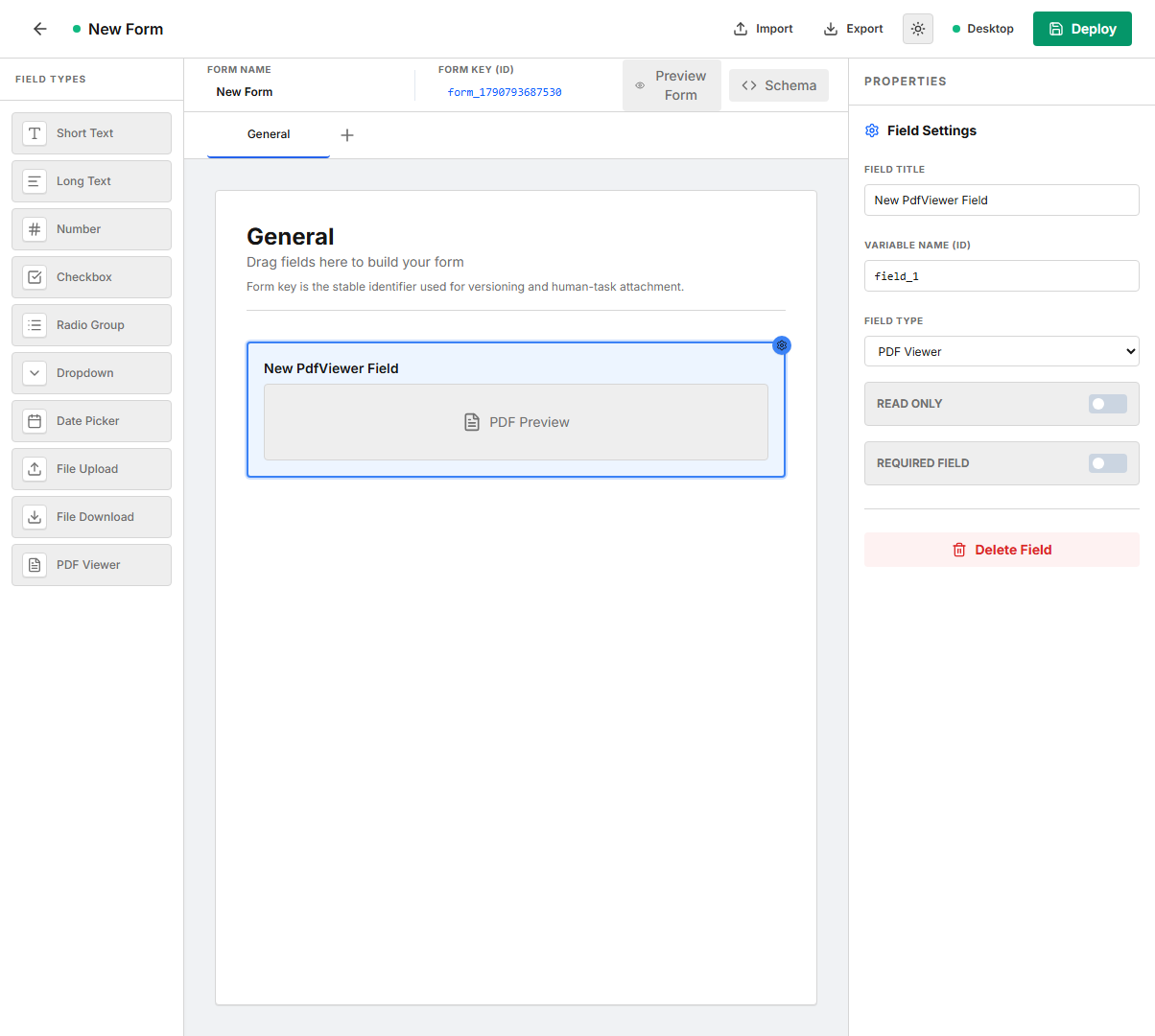
Use PDF Viewer to render an inline preview for a PDF document UUID supplied through the field variable. Configure it as read-only when the value comes from process or task input mapping. The deployed property uses format pdfViewer.
Preview and schema editor
Preview Form renders the active form with its tabs, controls, required markers, read-only state, options, date constraints, and document placeholders. Preview is for design verification; the Task Portal still applies its own runtime validation and document behavior.
Schema opens the generated JSON definition. You can edit the JSON and select Apply JSON to rebuild the visual form. Invalid JSON or an unsupported form structure is rejected without replacing the current form. Use Copy to Clipboard when the schema needs external review.
The main generated shape is:
{
  "formId": "expenseReview",
  "name": "Expense Review",
  "schema": {
    "title": "Expense Review",
    "type": "object",
    "properties": {
      "comment": {
        "title": "Manager comment",
        "type": "string",
        "format": "textarea",
        "maxLength": 1000,
        "readOnly": false
      }
    },
    "required": ["comment"]
  }
}
Import, export, and deployment
- Import loads a previously exported Form Modeler definition or a supported backend form schema.
- Export downloads a versioned JSON file containing the editable form definition, including tabs and field settings.
- Deploy validates the form and sends the generated schema to the backend as a new version of the same form key.
Deployment is blocked when the form name or key is empty, the key format is invalid, a variable name is empty, or two fields use the same variable name.
Attach the form to a Human Task
After deployment, select a Human Task in the process model and set its Form value to the deployed form key:
Human Task -> Form: expenseReview
Input mappings can provide initial values for read-only or editable fields. Output mappings copy submitted field values back into process variables. See User Tasks for task mappings and Forms for deployment and API examples.