Admin Console
The Admin Console is the operational workspace for monitoring processes, investigating instance execution, managing task ownership, recovering incidents, auditing Code Tasks, maintaining runtime data, and administering security resources.
Access the console
The standard packaged URL is http://localhost:3001. A local Vite development session commonly uses http://localhost:5173. Sign in with a user that has ACCESS_BPM_ADMIN; local development environments initially provide the admin account described in First Login.
Dashboard
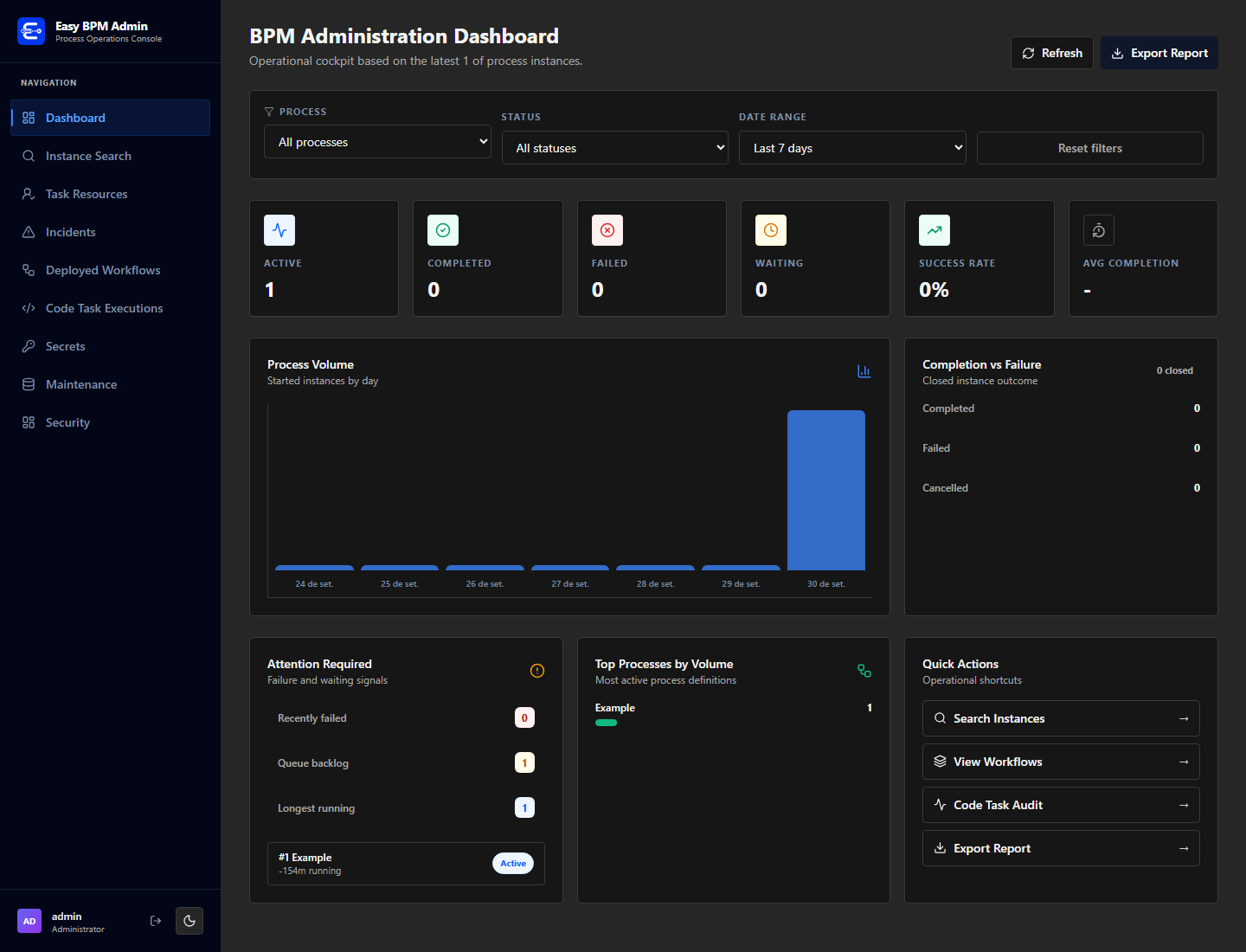
The dashboard summarizes recently loaded process instances. Filter the metrics by process, status, and date range, or reset the filters to return to the default view.
| Area | What it shows |
|---|---|
| Status cards | Active, completed, failed, and waiting instance counts. |
| Success rate | Percentage of closed instances that completed successfully. |
| Average completion | Average duration for completed instances. |
| Process volume | Daily instance starts for the selected date range. |
| Completion vs failure | Completed, failed, and cancelled outcomes. |
| Attention required | Recent failures, queue backlog, and the longest-running instance. |
| Top processes | Definitions with the highest instance volume. |
| Quick actions | Shortcuts to instance search, workflows, Code Task audits, and report export. |
Select Refresh to reload the operational data. Export Report downloads the currently filtered dashboard information.
Instance Search
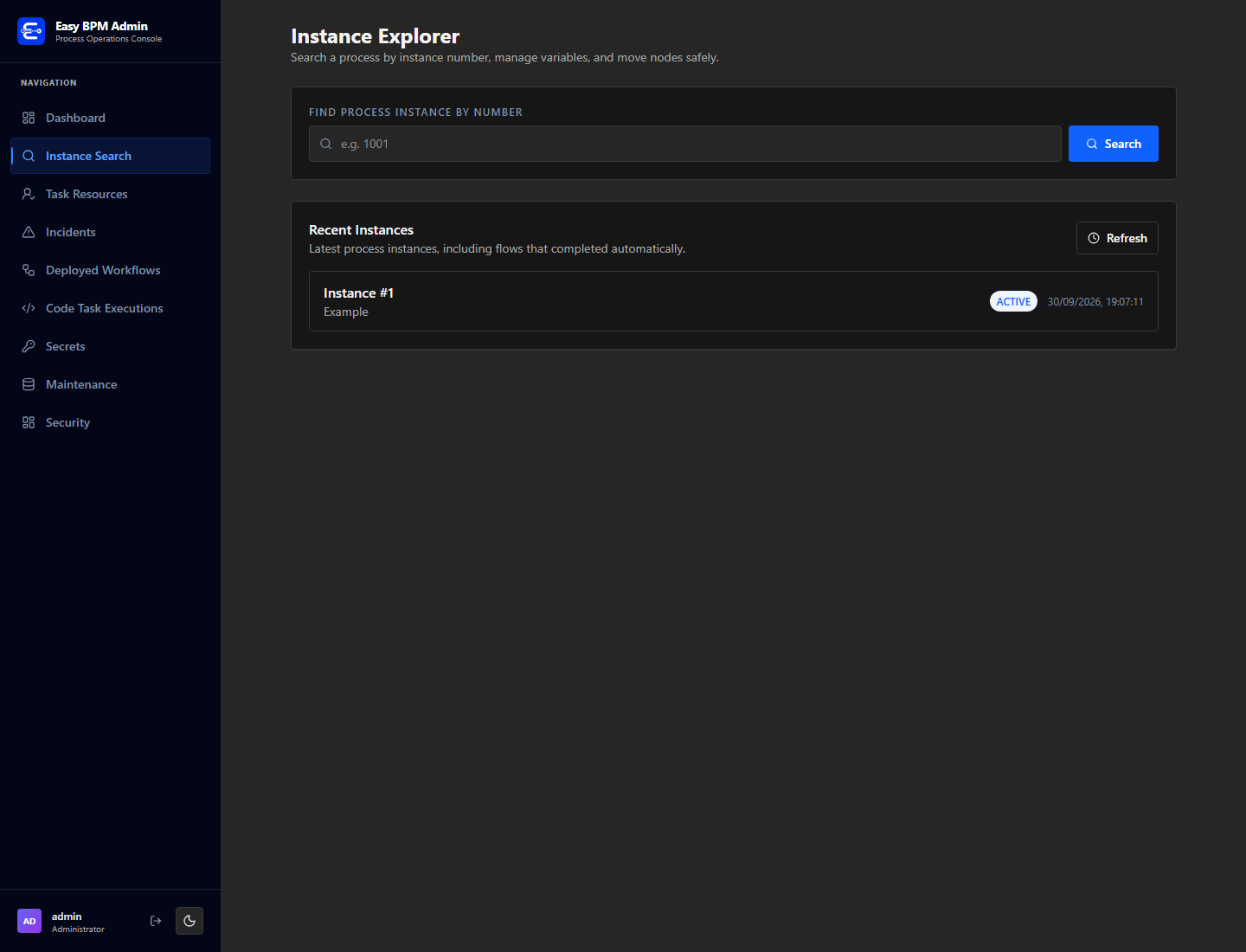
Open Instance Search to investigate a specific process instance. Enter its numeric instance ID or select an entry under Recent Instances.
Example instance 1
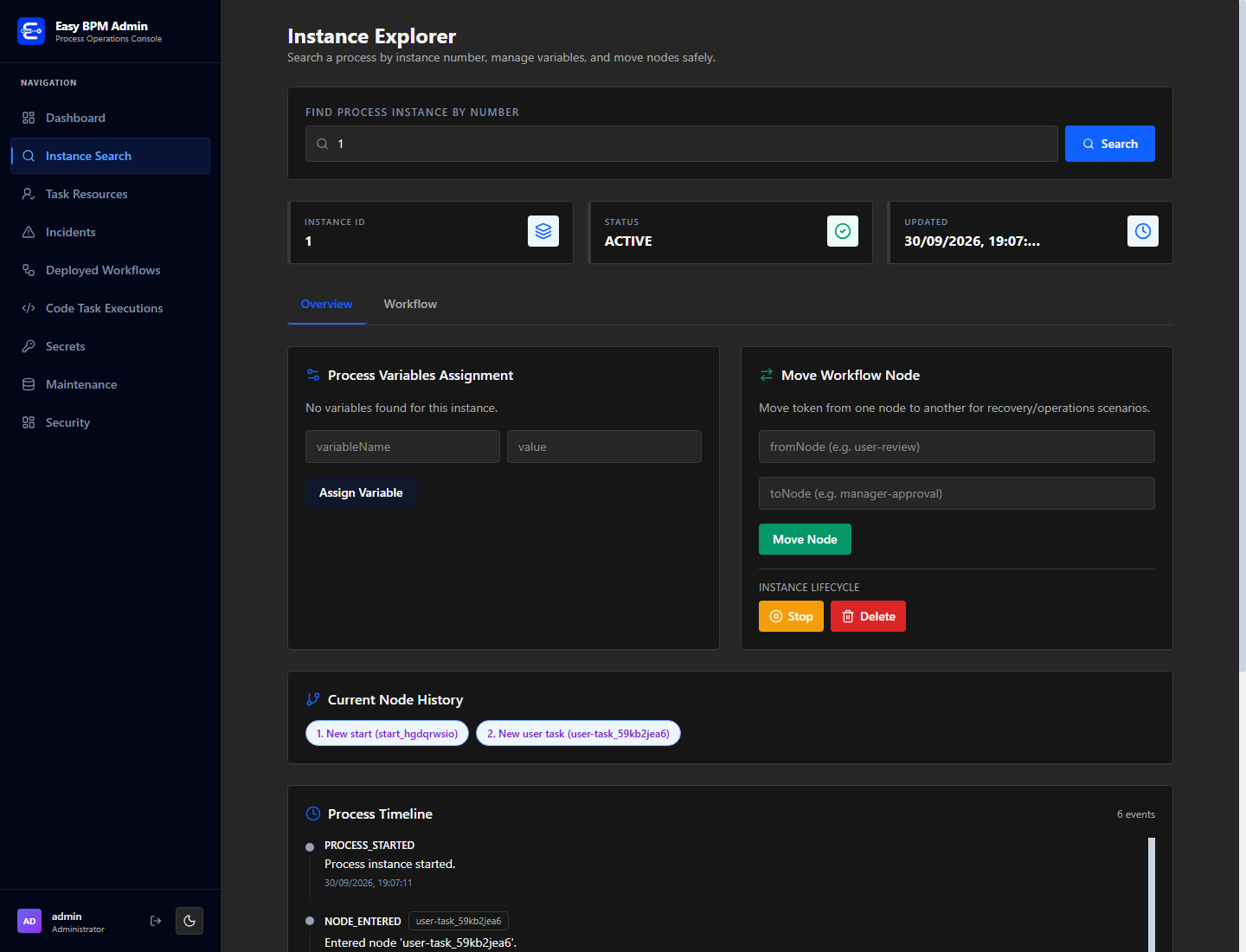
Instance 1 is the active Example process started from the Task Portal. Searching for it shows:
- status
ACTIVE - the Start Event and Human Task in the node history
- the Human Task as the current node
- six recorded timeline events at the time of capture
TASK_CLAIMEDevents showing that task1was assigned toadmin
Overview tab
The Overview tab combines runtime inspection and controlled support actions.
| Section | Purpose |
|---|---|
| Instance summary | Shows the ID, current status, and last update. |
| Process Variables Assignment | Lists current variables and allows an operator to add or replace a variable. JSON-looking input is parsed when valid; otherwise it is saved as text. |
| Move Workflow Node | Moves an active token from one known node ID to another for recovery scenarios. |
| Instance Lifecycle | Stops an active instance or permanently deletes its runtime record. |
| Current Node History | Shows the ordered process nodes visited by the instance. |
| Process Timeline | Shows timestamped process, task, worker, incident, retry, and manual-operation events. |
Variable assignment and node movement affect live process state. Record the reason in the support ticket and confirm the intended instance and node IDs before applying either action.
Stop cancels active execution. Delete permanently removes the instance and related runtime data. These are recovery and maintenance actions, not normal process navigation.
Workflow tab
The Workflow tab loads the exact deployed definition version linked to the instance. It highlights the traveled path and current nodes on the process canvas.
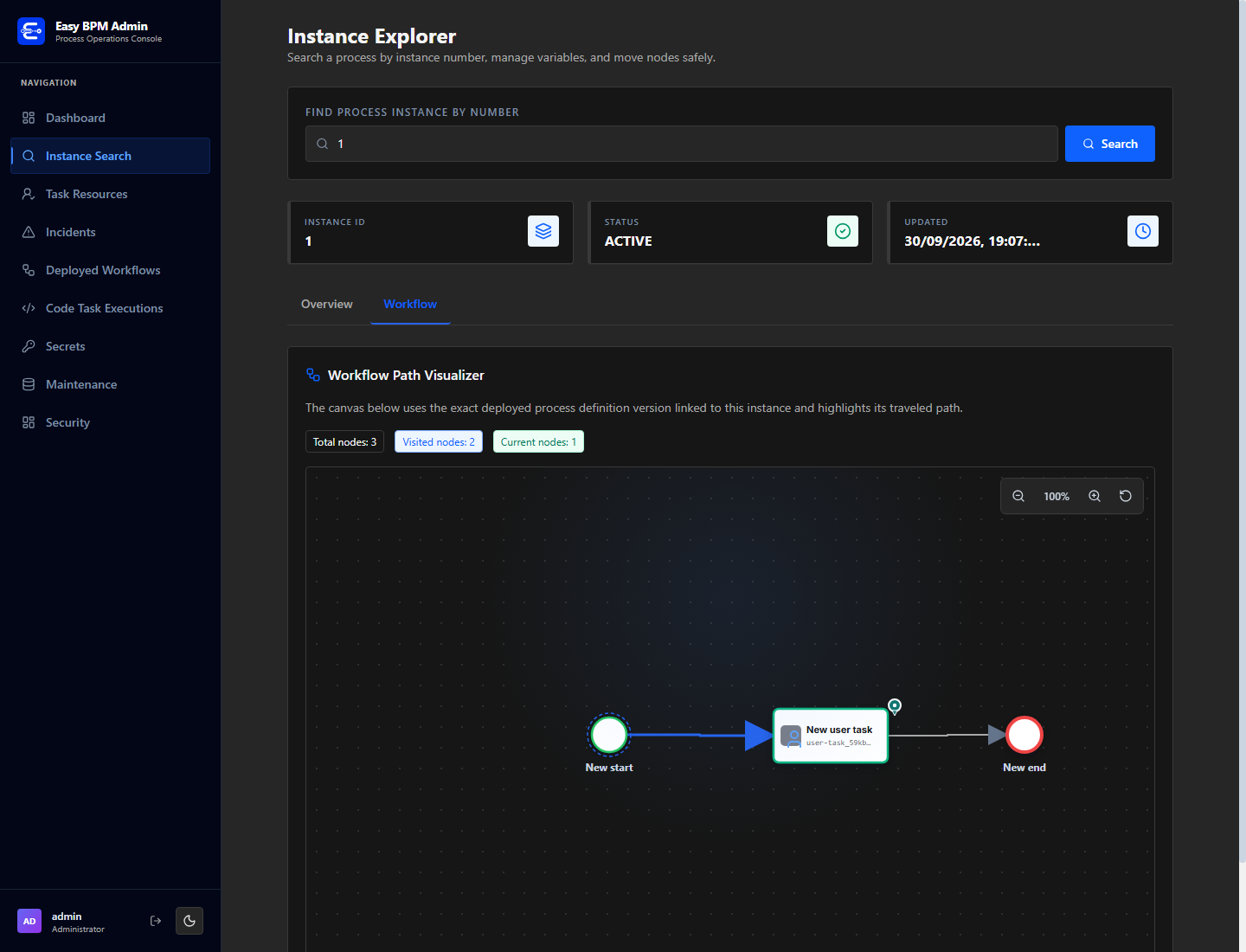
The summary reports total, visited, and current node counts. Use the zoom controls to inspect larger processes. In the example, two of three nodes have been visited and the Human Task is the current node.
Timeline versus node history
Node history answers where execution traveled. The timeline answers what happened and when, including task creation, claims, completions, worker calls, incidents, retries, and manual interventions. See Operations for the event reference and recommended investigation workflow.
Task Resources
Task Resources provides an administrative view of Human Task ownership. Filter by status or assignee, then review the task, process instance, node ID, current resource, candidate users and groups, and status.
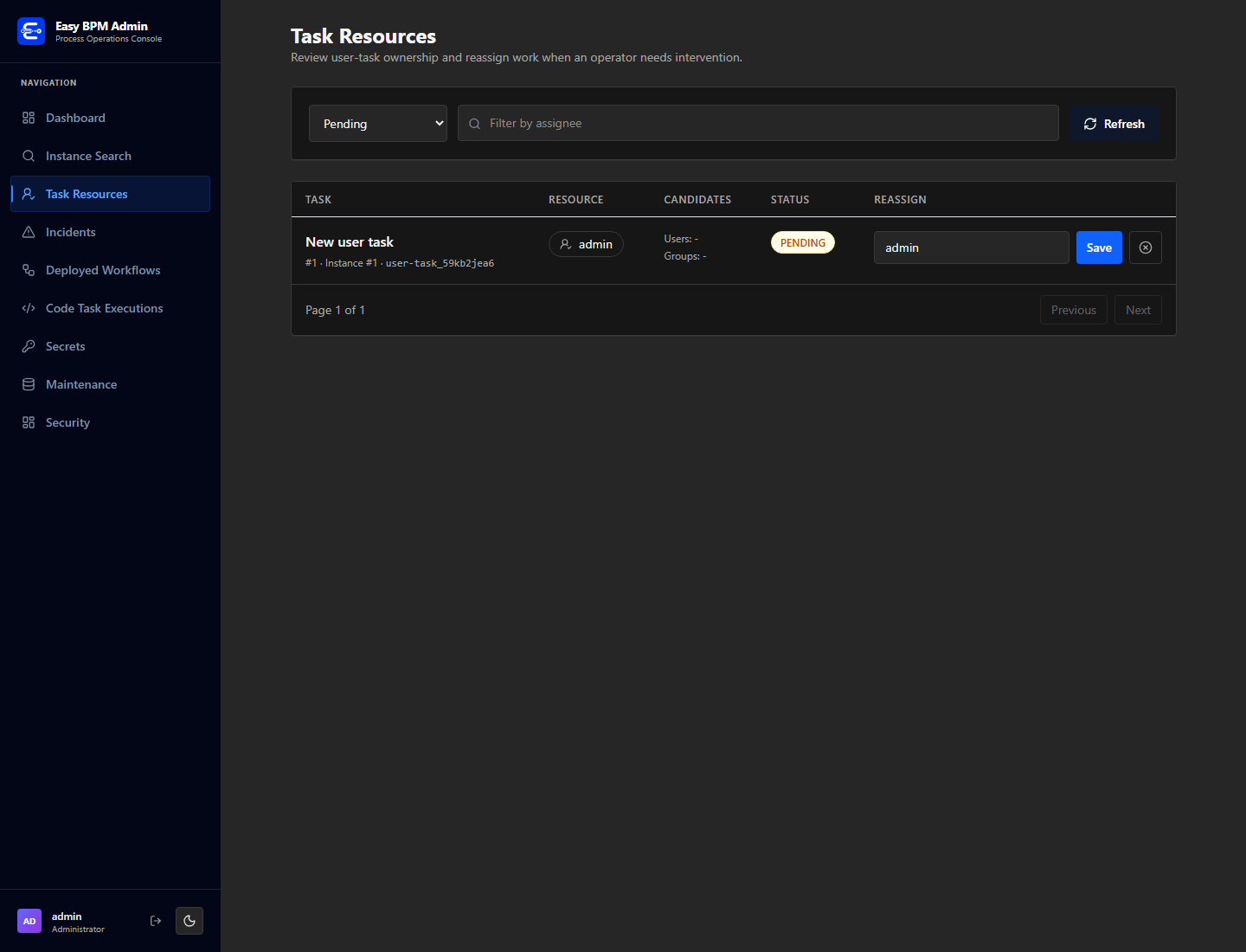
Enter a username and select Save to reassign a task. Use Clear assignee to return eligible shared work to the unassigned pool. Reassignment is an operator override; ordinary candidate users should claim work through the Task Portal.
Incident Manager
Incident Manager groups repeated failures so operators can investigate and recover related work together.
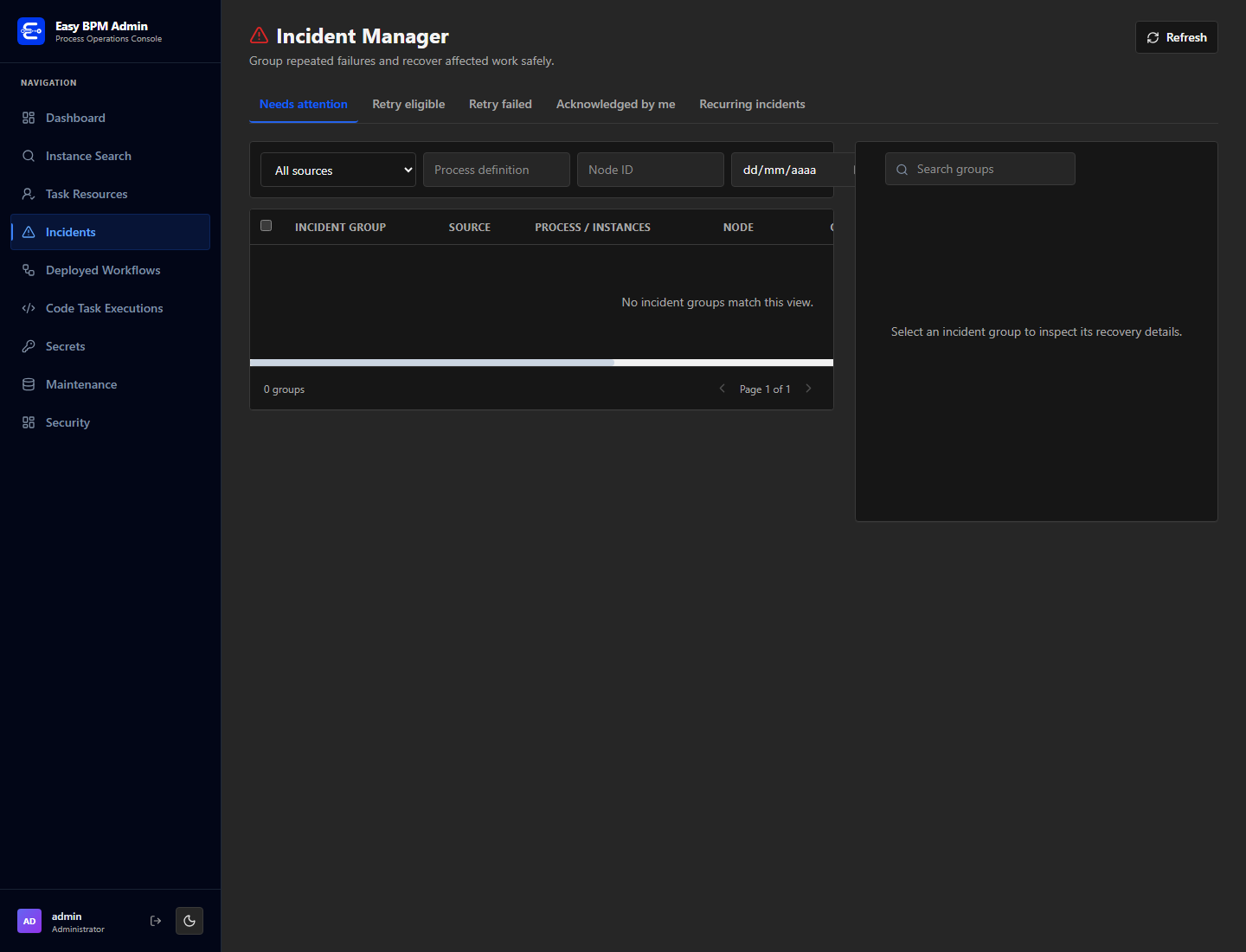
Views include Needs attention, Retry eligible, Retry failed, Acknowledged by me, and Recurring incidents. Filter groups by source, process instance, node ID, occurrence date, or search text. Supported sources include PROCESS_ENGINE, WORKER, CODE_TASK, AI_TASK, and MESSAGE.
When incidents exist, select a group to inspect its occurrences and recovery history. Depending on the incident state and source, operators can acknowledge, retry, resolve, reopen, or open the related instance.
Deployed Workflows
Deployed Workflows lists every process definition and version available to the runtime, including its database ID, stable process key, description, and version.
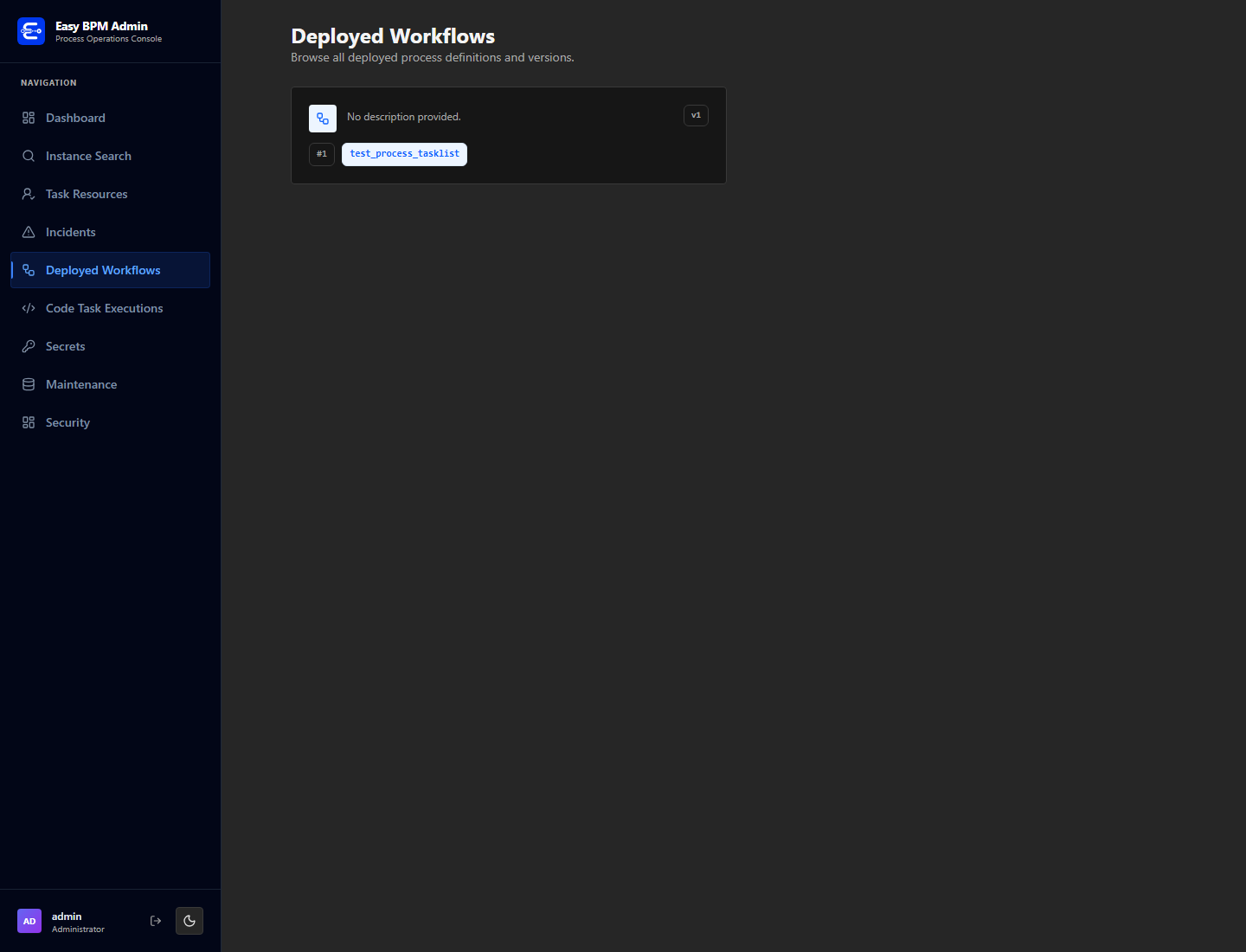
Use this catalog to confirm the exact definition identifier and version before investigating an instance or running maintenance operations.
Code Task Executions
The Code Task Executions page is the audit view for server-side Code Tasks. It summarizes execution count, success and failure rates, average execution time, and throughput.
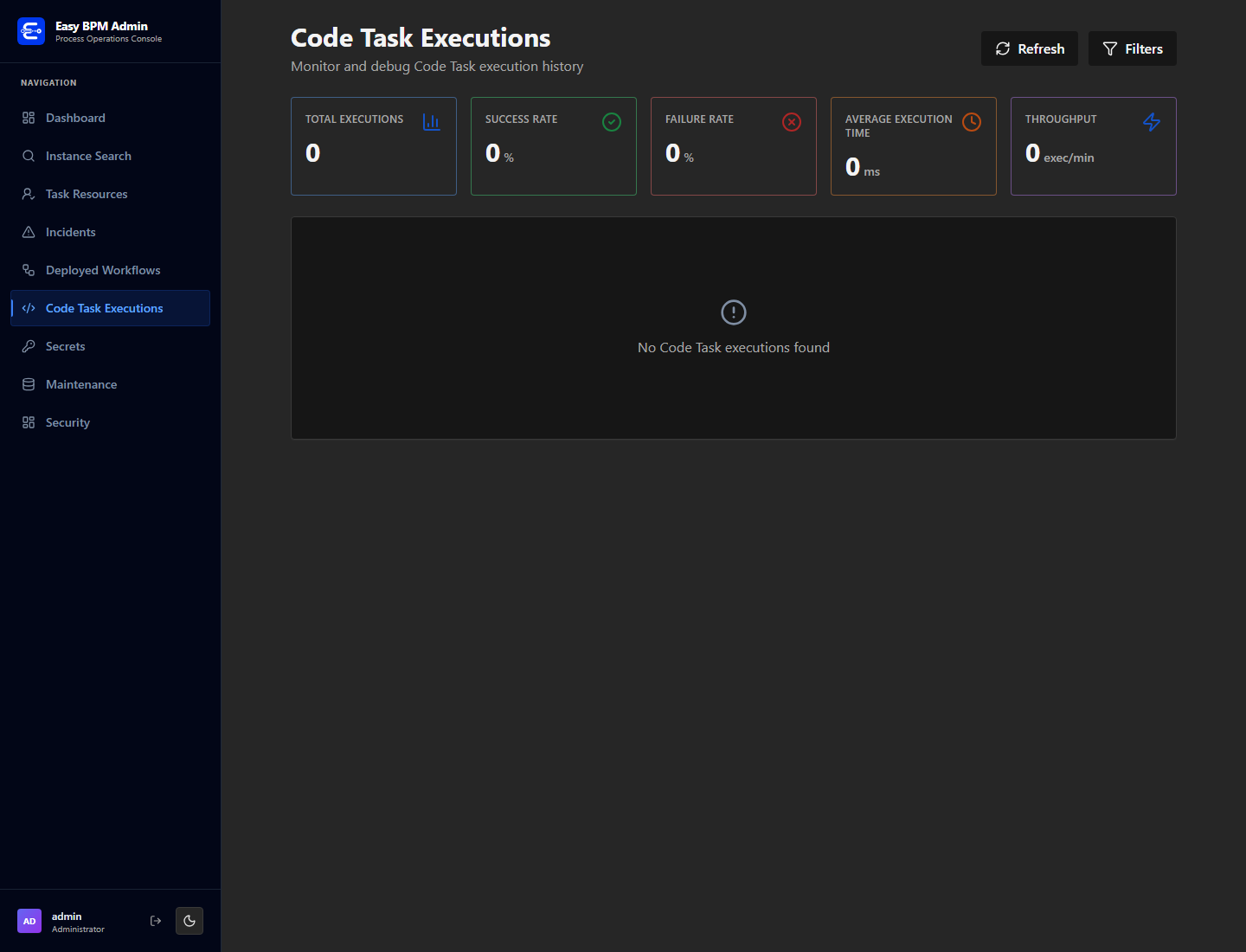
Use filters to narrow execution history by status, process, instance, or time range. Execution details can expose inputs, outputs, duration, and failure information when audit records exist.
Runtime Secrets
Runtime Secrets stores encrypted credentials shared by API Tasks, AI Tasks, and other process integrations.
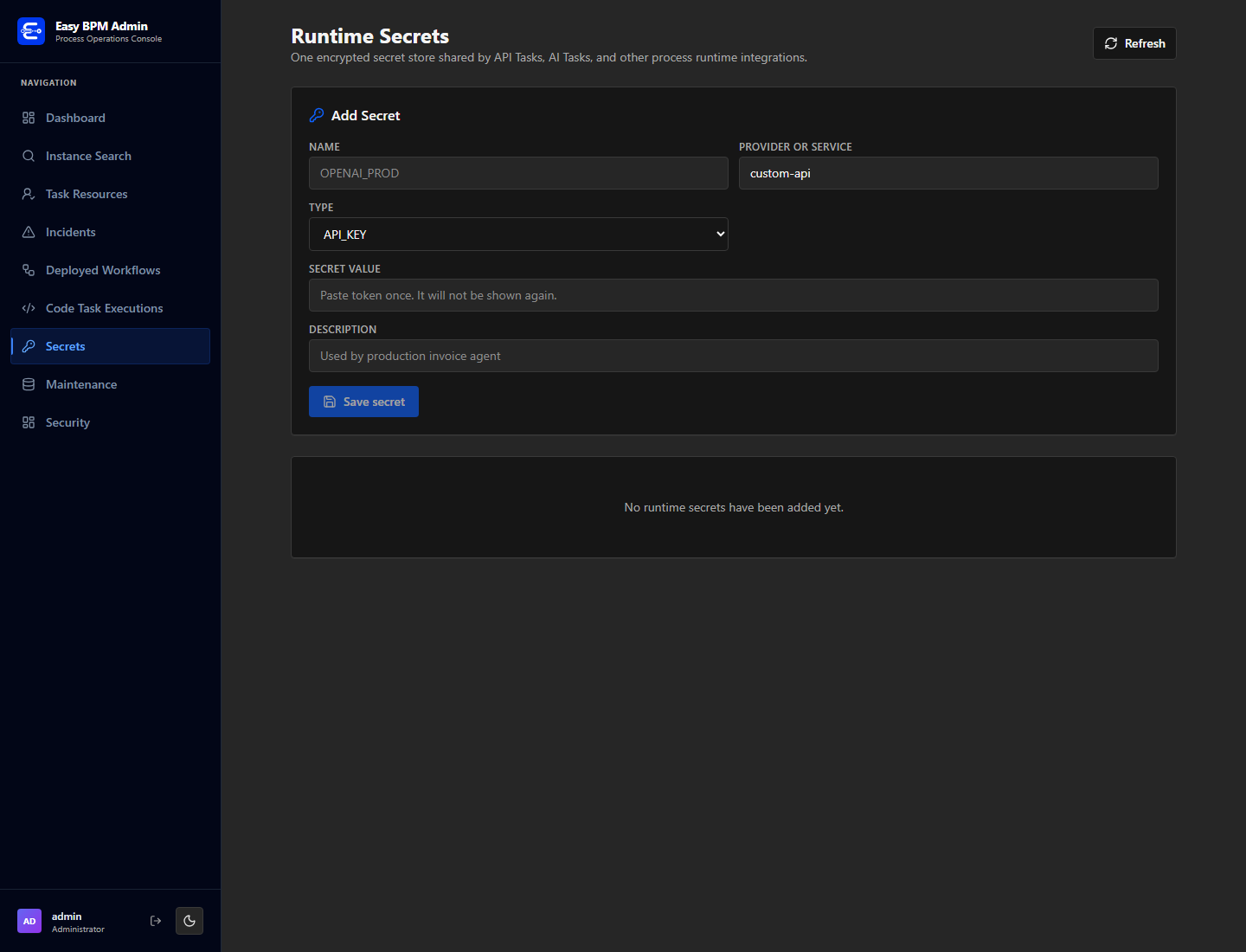
To create a secret, configure its stable name, provider or service, type, value, and optional description. Supported types include API key, bearer token, and basic authentication. Secret values are accepted once and are not displayed again; the console only exposes safe metadata after creation.
Users require VIEW_SECRETS to view metadata and MANAGE_SECRETS to create, rotate, or remove secrets.
Maintenance
Maintenance contains retention and destructive cleanup controls.
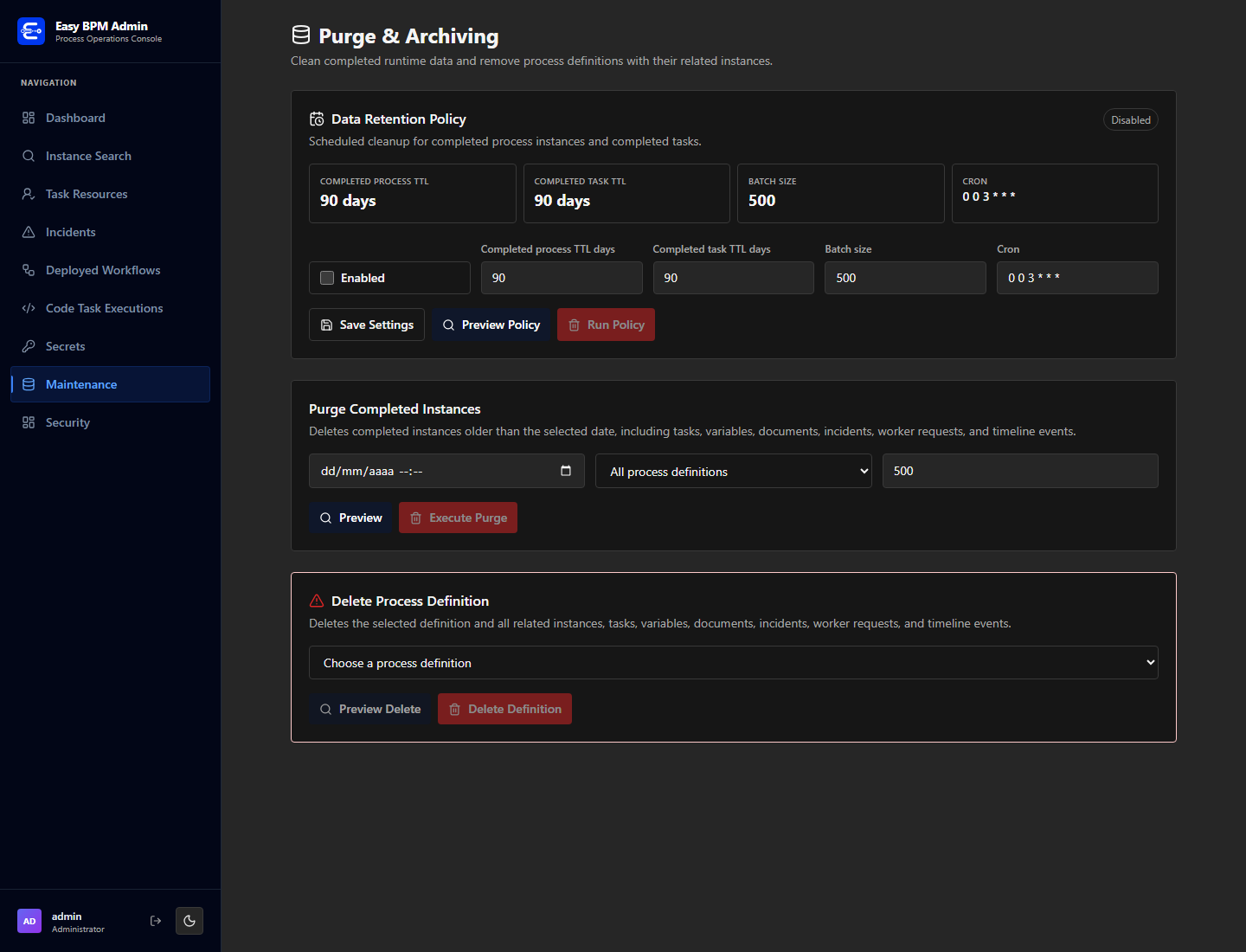
| Operation | Purpose |
|---|---|
| Data Retention Policy | Schedules cleanup with separate completed-process and completed-task TTLs, batch size, and cron expression. |
| Preview Policy | Calculates the records that the saved retention policy would remove. |
| Run Policy | Executes the enabled retention policy. |
| Purge Completed Instances | Deletes completed instances older than a date, optionally limited to a definition. |
| Delete Process Definition | Deletes a definition and all related runtime records. |
Always preview cleanup before execution. Purges and definition deletion can remove tasks, variables, documents, incidents, worker requests, audit records, timeline events, and call-activity mappings. They are hard deletes.
Security
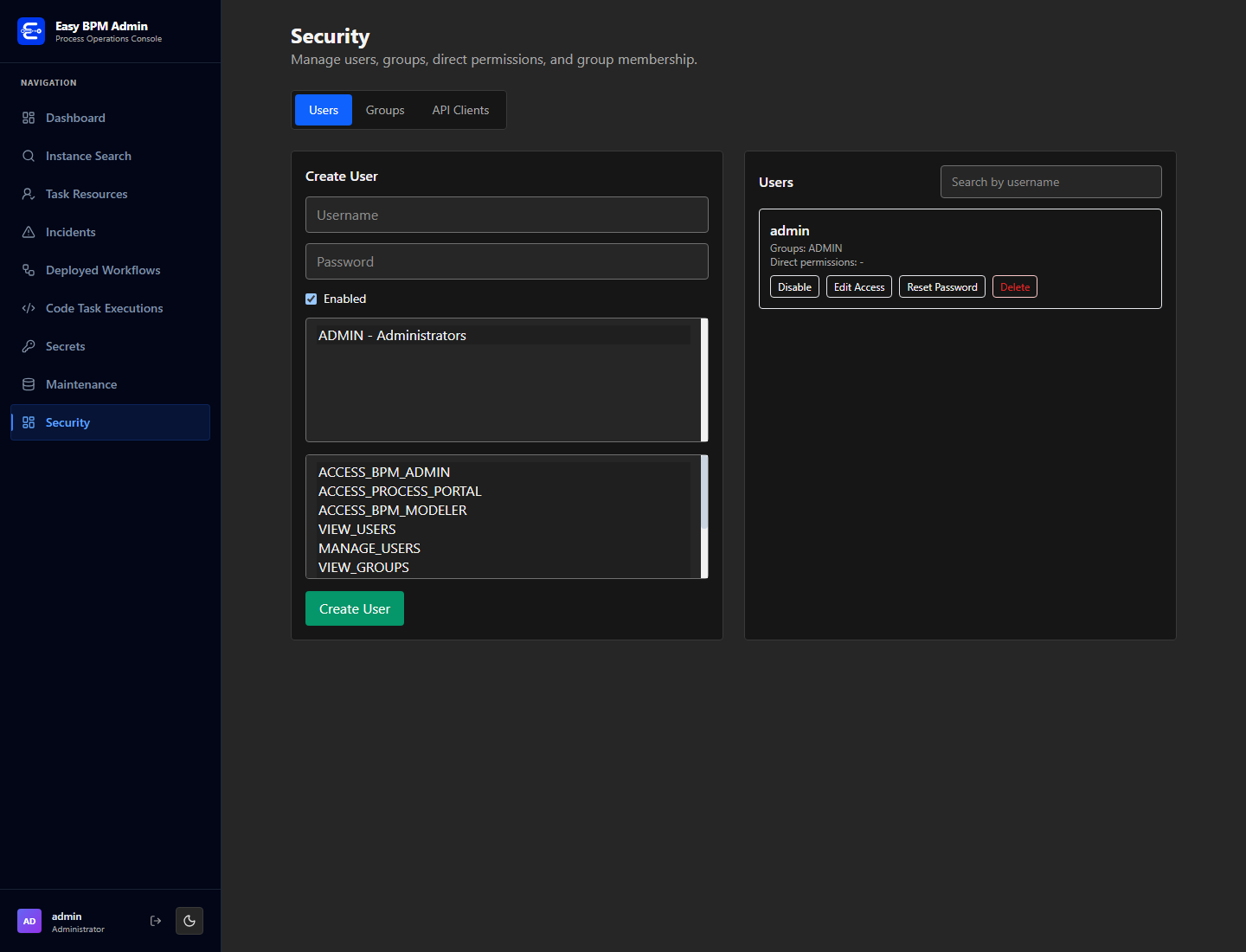
Security manages local users, groups, permissions, memberships, and API clients.
Users
Create users with an initial password, enabled state, group memberships, and direct permissions. Existing users can be searched, enabled or disabled, assigned new access, reset, or deleted. Prefer group permissions over repeated direct permission assignments.
Groups
Create a stable group code and display name, then assign the permissions inherited by its members. Existing groups support permission updates and membership management.
API Clients
API clients are service identities for external Easy BPM integrations. Search by name and filter by active, expired, or revoked state. Client secret creation and rotation should follow the same least-privilege and secure-storage practices as other machine credentials.
Permissions
| Permission | Enables |
|---|---|
ACCESS_BPM_ADMIN | Admin Console access and operational process APIs. |
VIEW_USERS / MANAGE_USERS | User inspection and administration. |
VIEW_GROUPS / MANAGE_GROUPS | Group and membership inspection and administration. |
MANAGE_PERMISSIONS | Permission assignment where enabled. |
VIEW_SECRETS / MANAGE_SECRETS | Secret metadata access and secret administration. |
VIEW_API_CLIENTS / MANAGE_API_CLIENTS | API client inspection and administration. |
See Permissions for suggested roles and Keycloak mapping guidance.
Recommended investigation workflow
- Search the instance by ID.
- Review status, current node history, variables, and timeline.
- Open the Workflow tab to compare runtime progress with the deployed definition.
- Check Task Resources when execution is waiting at a Human Task.
- Check Incident Manager before changing variables or moving a node.
- Apply the smallest recovery action that restores normal execution.
- Reopen the instance timeline and confirm the resulting operational event.